Using the panel
The agent serves a browser panel on its listener (agent.listen, port 8420). It is the panel module, on by default. A new install answers on the host itself only (https:/); to open the panel from your computer, set agent.listen: 0.0.0.0:8420 (or one of the host's addresses), reload the service (sudo systemctl reload restorly) and open https:/. Off the host the panel always uses HTTPS: the self-signed certificate a new install has (agent.), or your own (agent.tls_cert/agent.tls_key, or Settings → General); plain HTTP is refused off loopback.
Every asset is embedded in the binary, so the panel works offline and loads nothing from the internet.
A tour of the panel
The screenshots come from a demo install with four example databases.
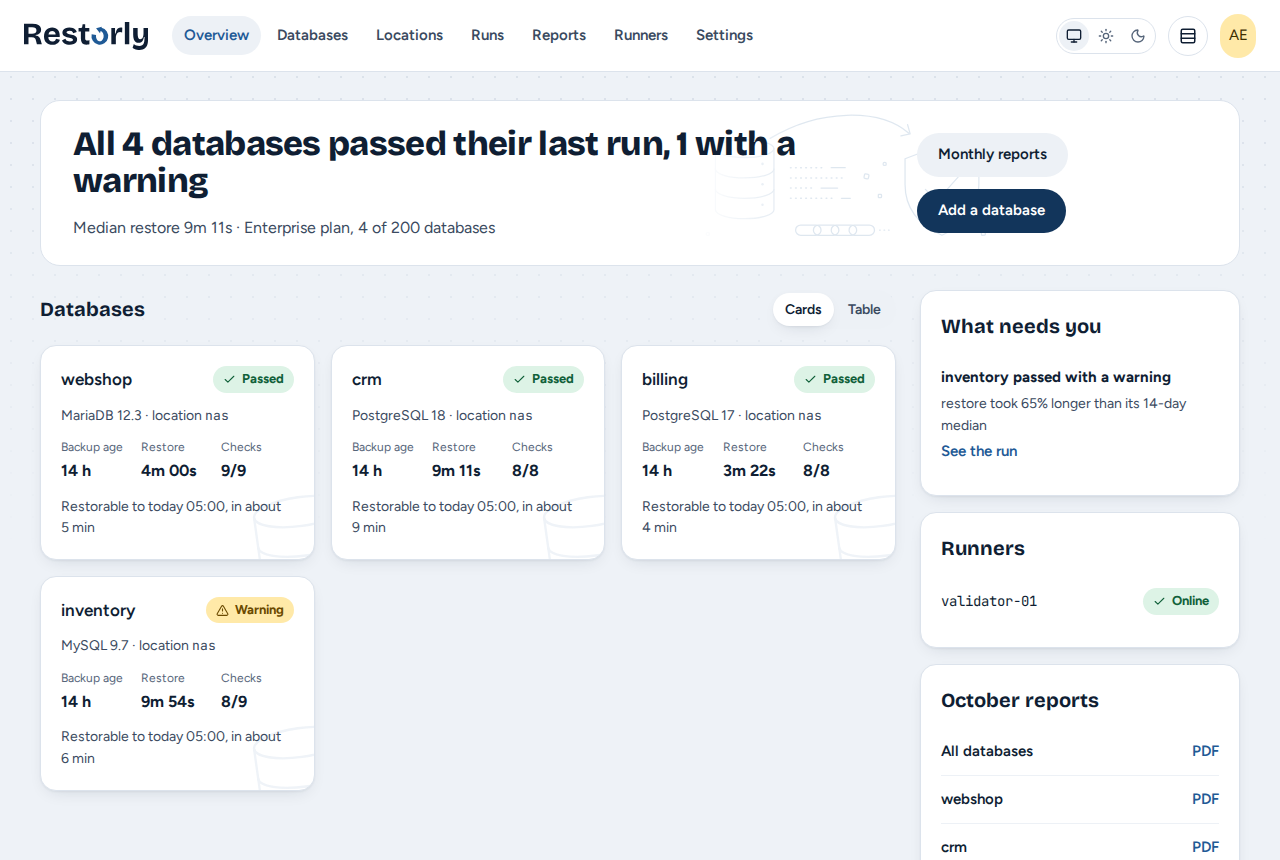
Overview
The status of every database at a glance: the last result, the age of the newest backup, the restore time and how many checks passed. What needs you lists failures and warnings with a link to the run that explains them; Runners shows the hosts that restore, and the monthly reports are one click away. Map, Cards and Table switch the view. Map, the default above 24 databases, shows a small tile per database with its name and its last result (an icon, the colour and, for screen readers, the word), grouped by client when there are clients, the worst group and the worst databases first; above it, the number of databases with each result, each a link to those databases on the Databases page. Hundreds of databases fit on one screen.
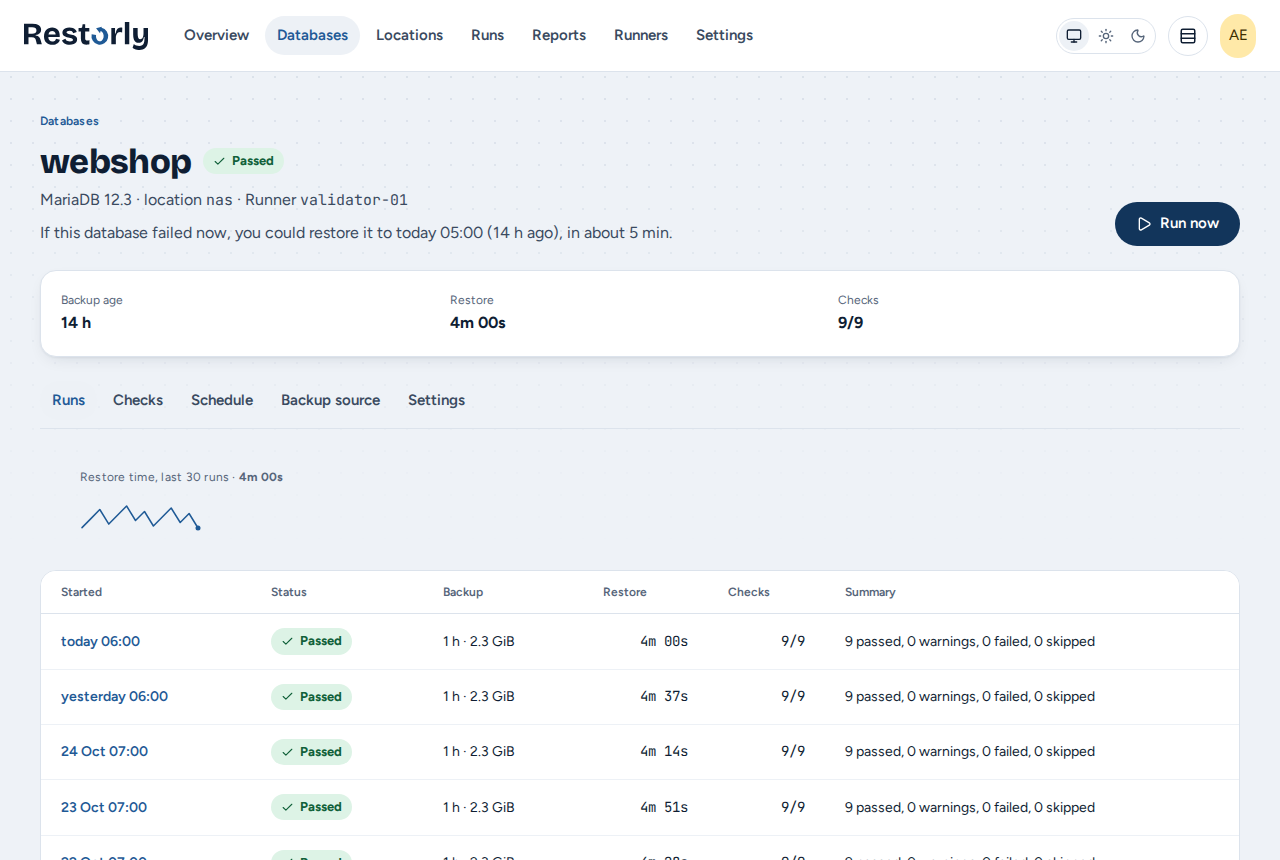
Each database also says what it can be restored to: "Restorable to yesterday 03:00, in about 4 min" is the time of the data in the newest backup that passed validation (with the point-in-time test, the last transaction replayed on it) and the median of its latest restores. It is the honest answer to "if this database failed now, how far back would we go, and how long would the restore take": when the newest backups fail, it stays at the last one that passed. The database's page says it as a sentence, and the Databases page has it as a column. Optional targets per database (Recovery point target and Restore time target in the schedule step, or targets[]) mark a missed target on the card, warn on the run that misses it, and list the database under What needs you when its recovery point gets older than the target between runs.
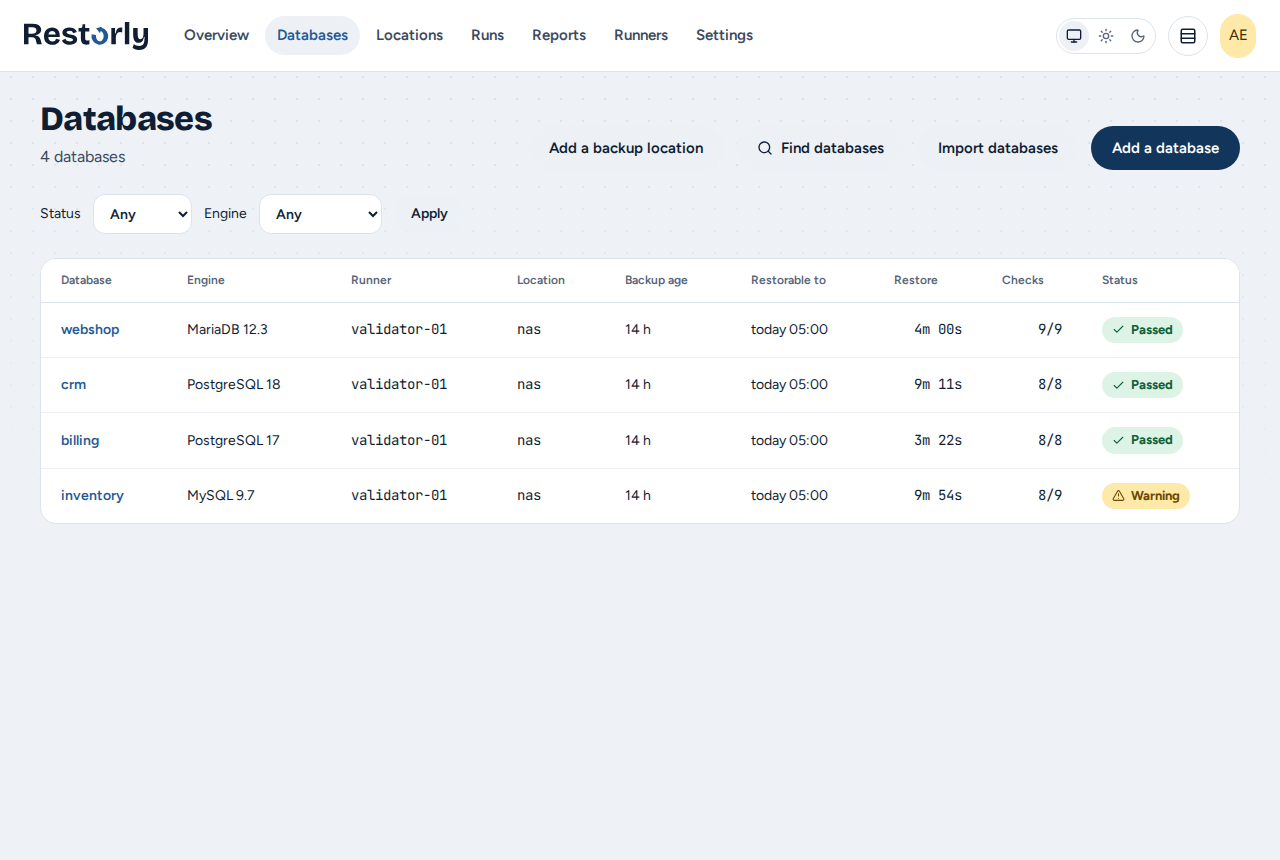
Databases
Every database with its engine, backup location, last run and result, the worst first. Above the list, the number of databases with each result (Failed, Warning, Passed …): each is a link that shows only those, keeping the other filters. Search by name, filter by client, engine, backup location or tag, by Failing for (1, 3, 7 or 14 days or more, counted from the last run that passed, or from the first run of a database that never passed) and by Backup older than its max age (the newest backup validated is older than the database's max_age now), and Group by client, status, engine, backup location, runner or a tag: each group shows its databases' results ("12 databases: 1 failed, 11 passed"), its last 30 days as a strip of days coloured by each day's worst result (a day's counts show when you point at it) and the share of its runs that passed, and the groups come worst first. The address keeps the choice, so a view can be bookmarked or sent. Tags (for example env=prod, team=finance) are set in a database's settings, in its first step, or in the configuration (targets[].tags). Add a database opens the same steps as the setup wizard.
With acts on the ticked databases, or on all those the filter shows: Run now and Acknowledge the failure (with a note, held until each passes or for 24 hours or 3 days) for operators, Set the schedule for people who may change databases, and Move to a client for admins where the plan has clients. Each database must be within the person's access; every run, acknowledgement and configuration change is audited as when it is done on one database.
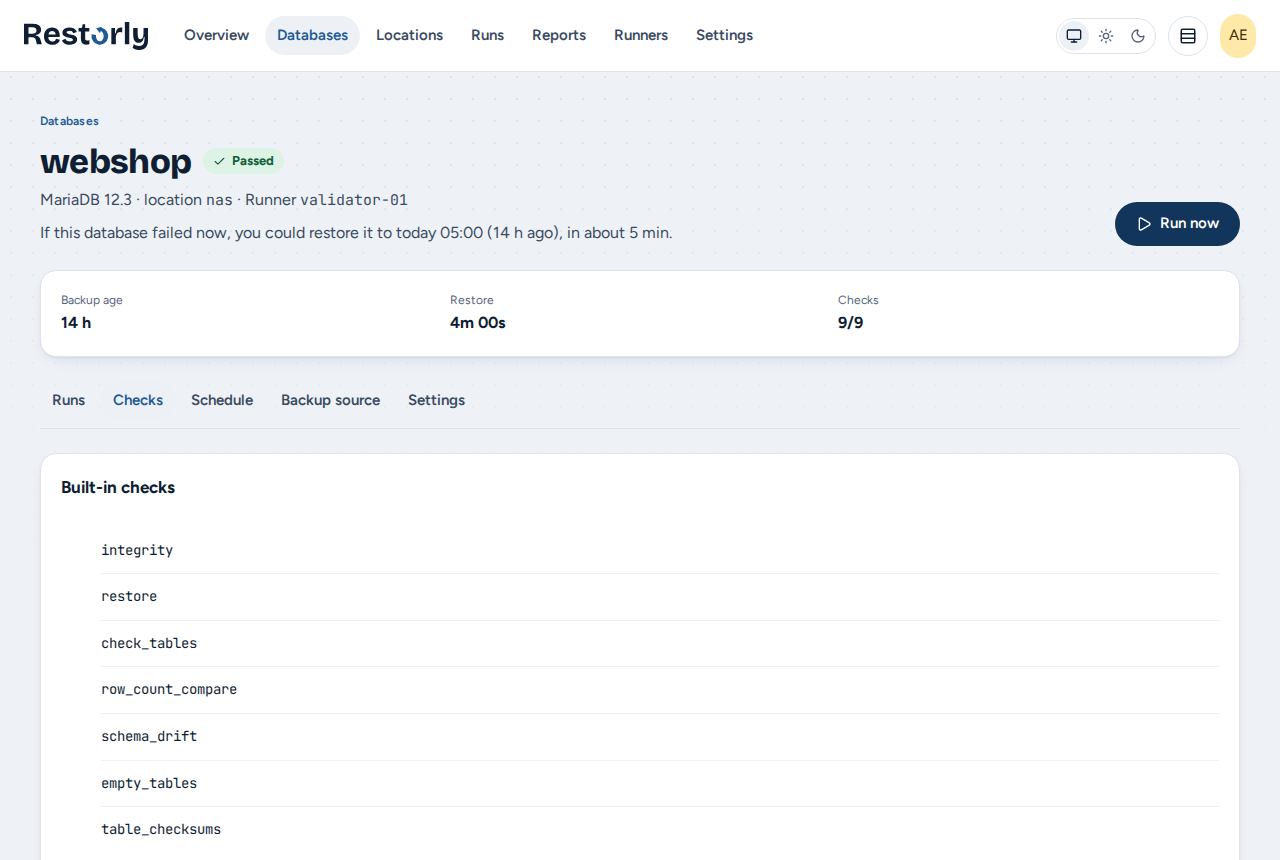
A database's page has its history and Run now. The tabs:
- Runs: every validation with its result, restore time and checks, and a trend of the restore time.
- Checks: the built-in checks and your own SQL checks, each with what it expects; Add a check and Test against the last restore.
- Schedule: when it is validated (at set times, or When a new backup arrives: as soon as a new backup is complete) and how old its newest backup may be.
- Backup source: where its backups are, the file-name pattern and the newest backup Restorly found.
- Settings: Disk for a restore (below), Edit (the same steps as adding it) and Remove.
Before a restore starts, Restorly reserves the disk it needs: what the last restore of the database put on disk, or before one an estimate from the backup's size, plus 10%. A restore that could never get it on its host is not started, and its run says so. When that figure is wrong for a database, set the size it needs under Disk for a restore (restore_disk, for example 40GiB): it is reserved as it is. To test the backup once regardless, an administrator presses Run anyway on the refused run's page: the restore starts without the disk check, uses all the free disk if it needs more, and is stopped if the disk fills; its report warns that the check was skipped, and the audit log records who started it (run.anyway). Schedules never skip the check. The same from the command line: restorly run --target ID --ignore-disk-space.
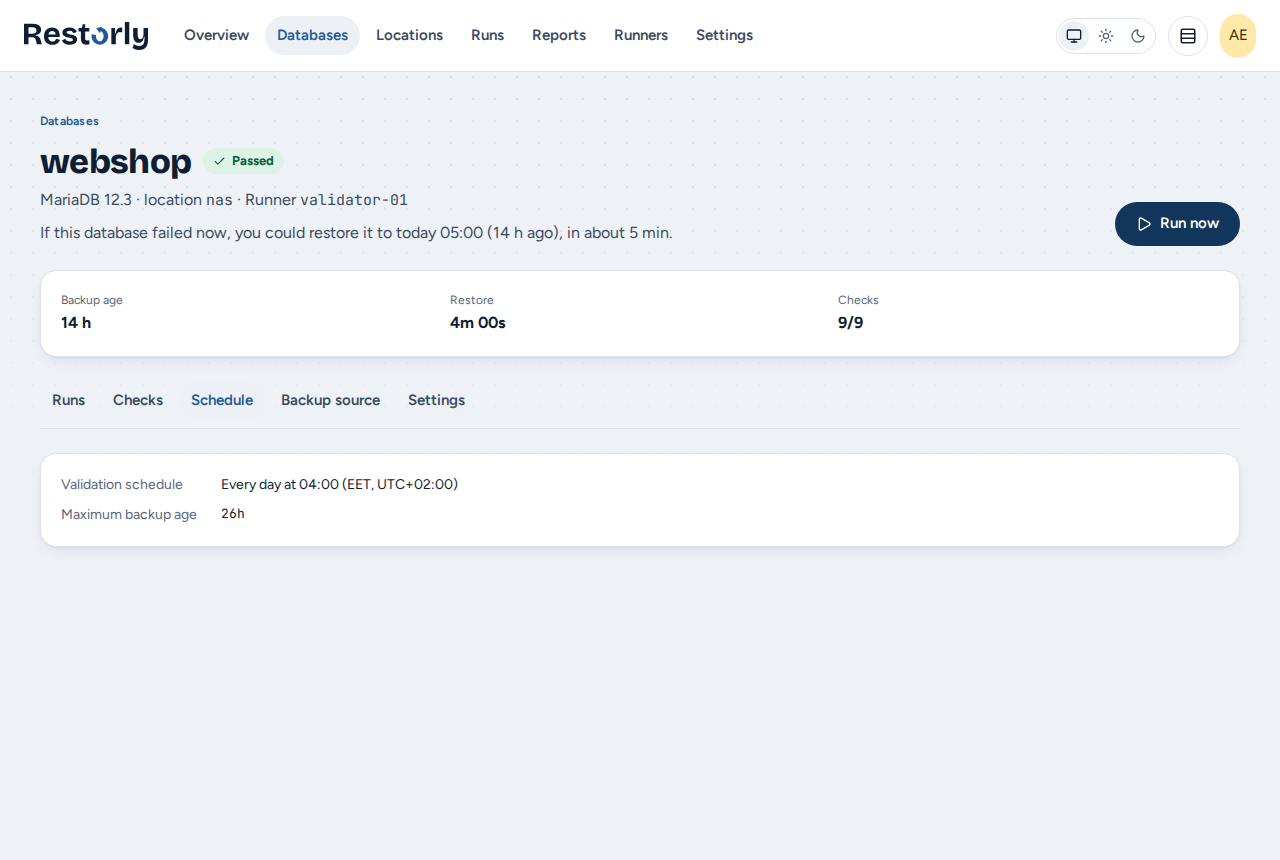
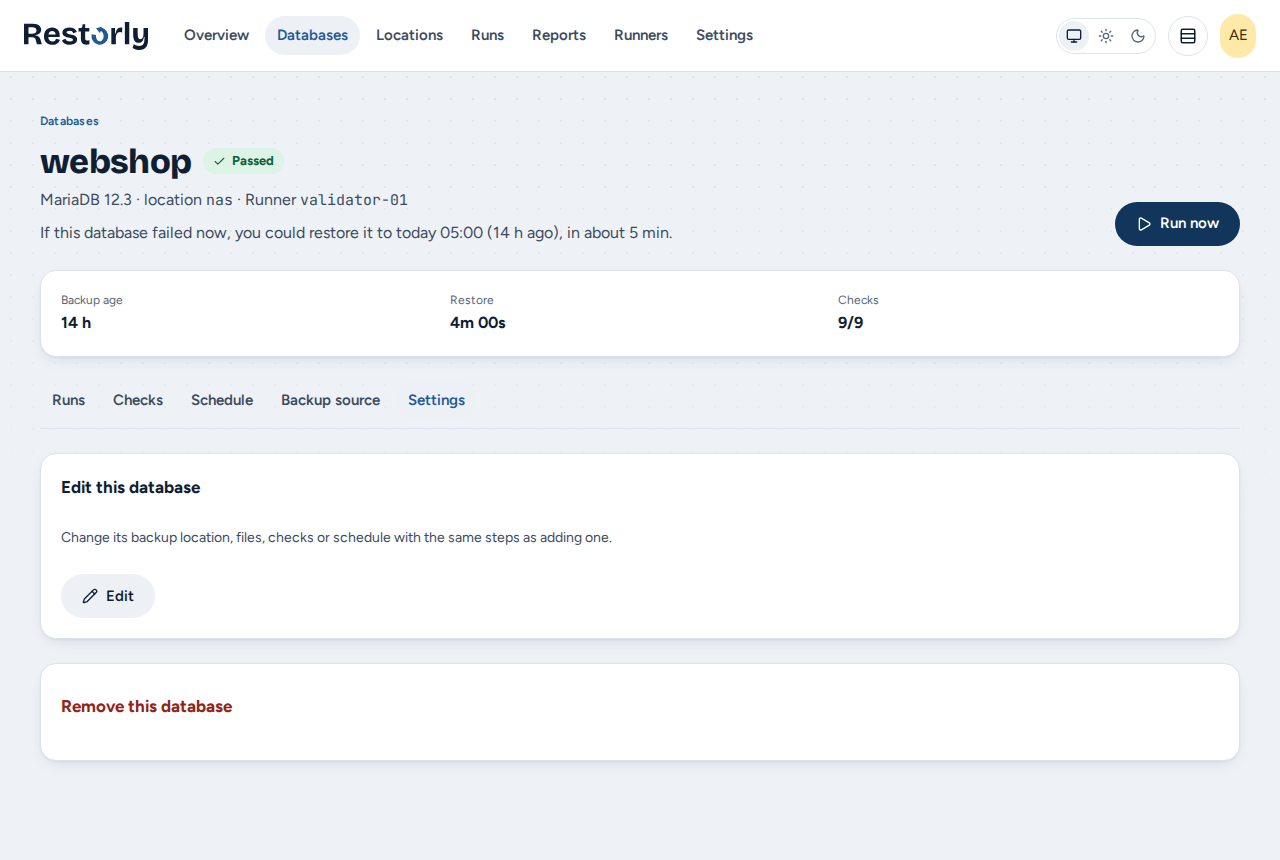
Runs
Every validation, newest first, filtered by database and status. A run's page shows each check with what was expected and what was found, the stages with their times, the signature check, and the signed JSON and PDF downloads. When the run's restore was kept for inspection, its page says until when and how to open it (see Keeping a failed restore for inspection).
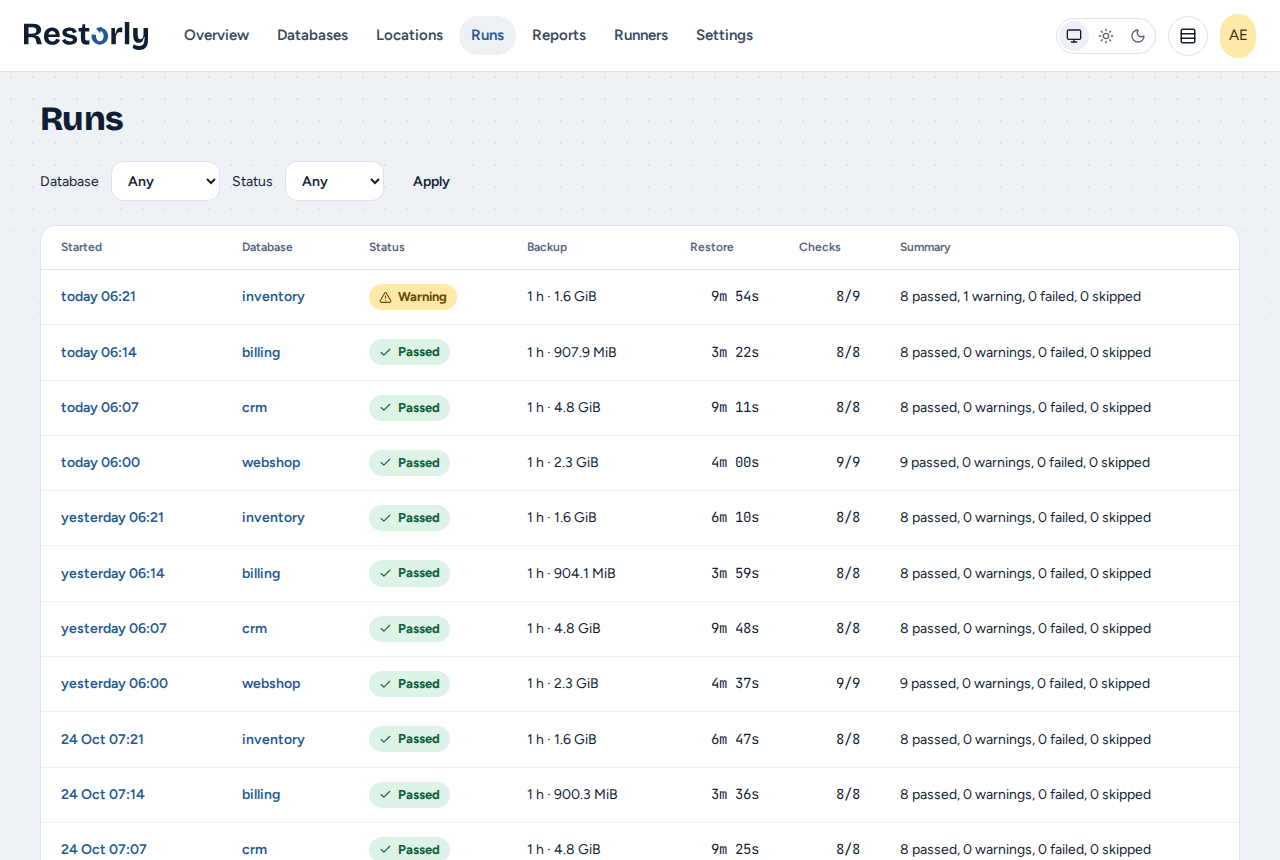
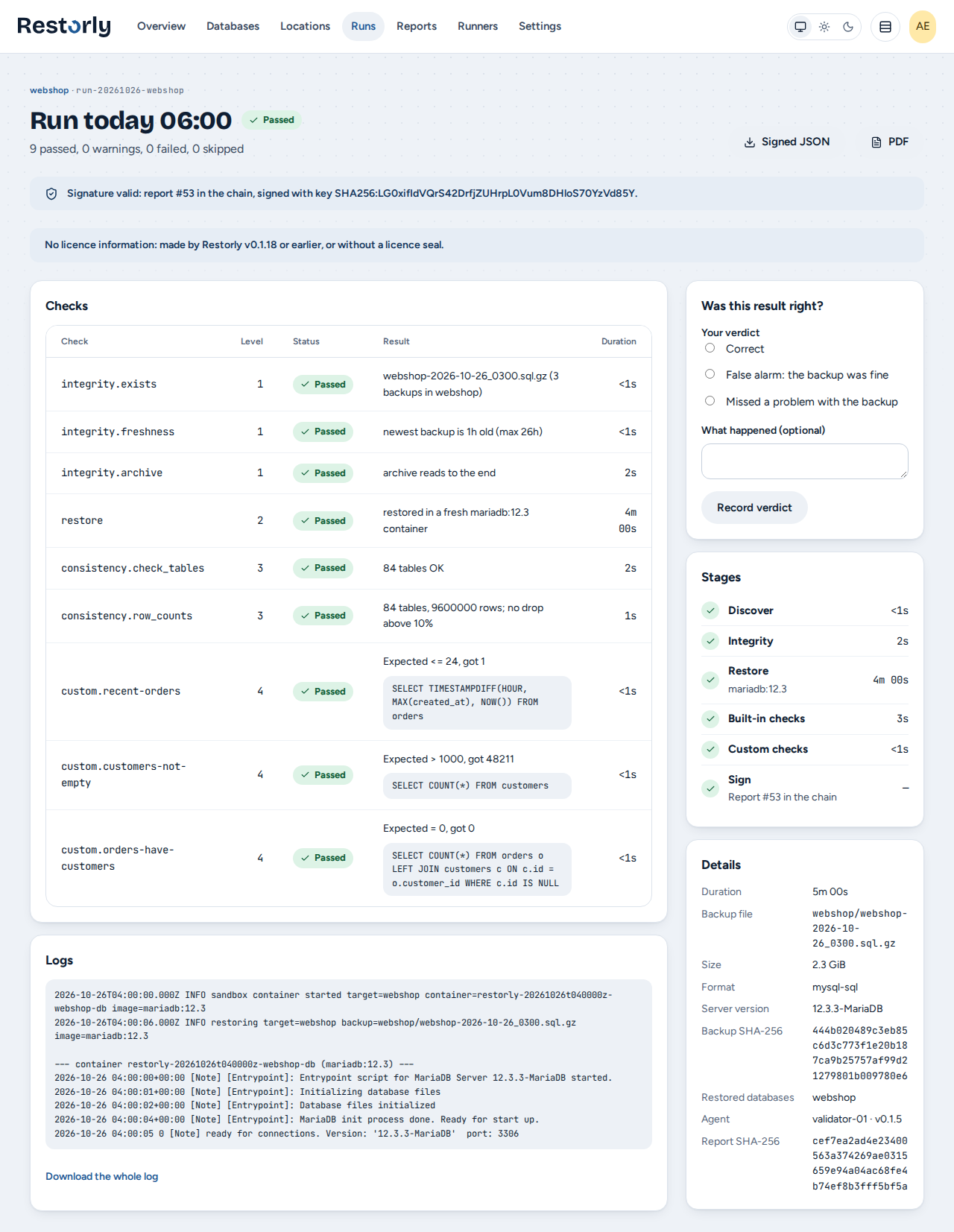
Reports
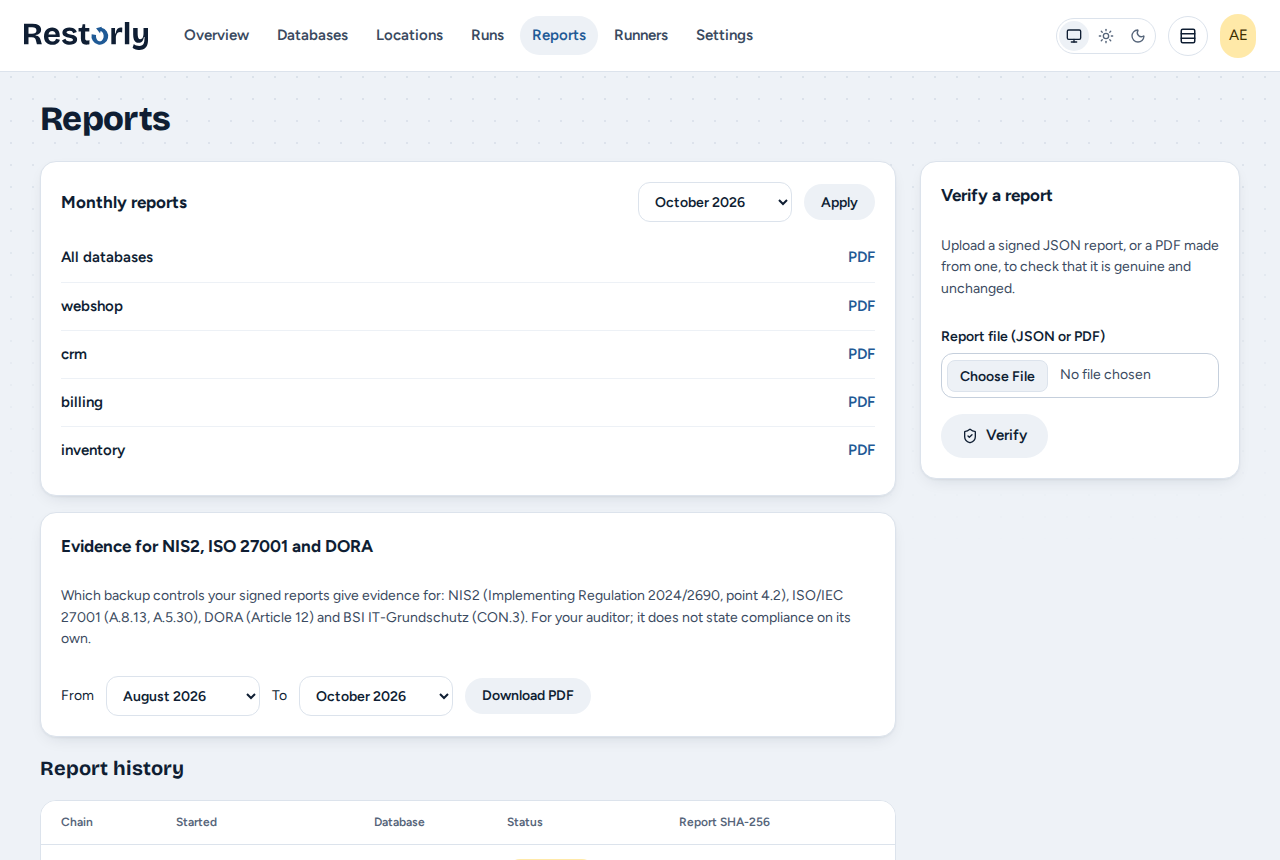
Monthly PDF reports (all databases, per client and per database), the NIS2 / ISO 27001 evidence report, the report history, and Verify a report for any JSON or PDF report.
Whoever you hand reports to (an auditor, a client) checks them without Restorly at restorly.eu/verify, in their browser: the files are never uploaded. Give them the signed JSON report (and its PDF, if they want it) and the key ID shown on every run's page ("signed with key SHA256:…"), so the check also proves which installation signed it.
Backup locations and runners
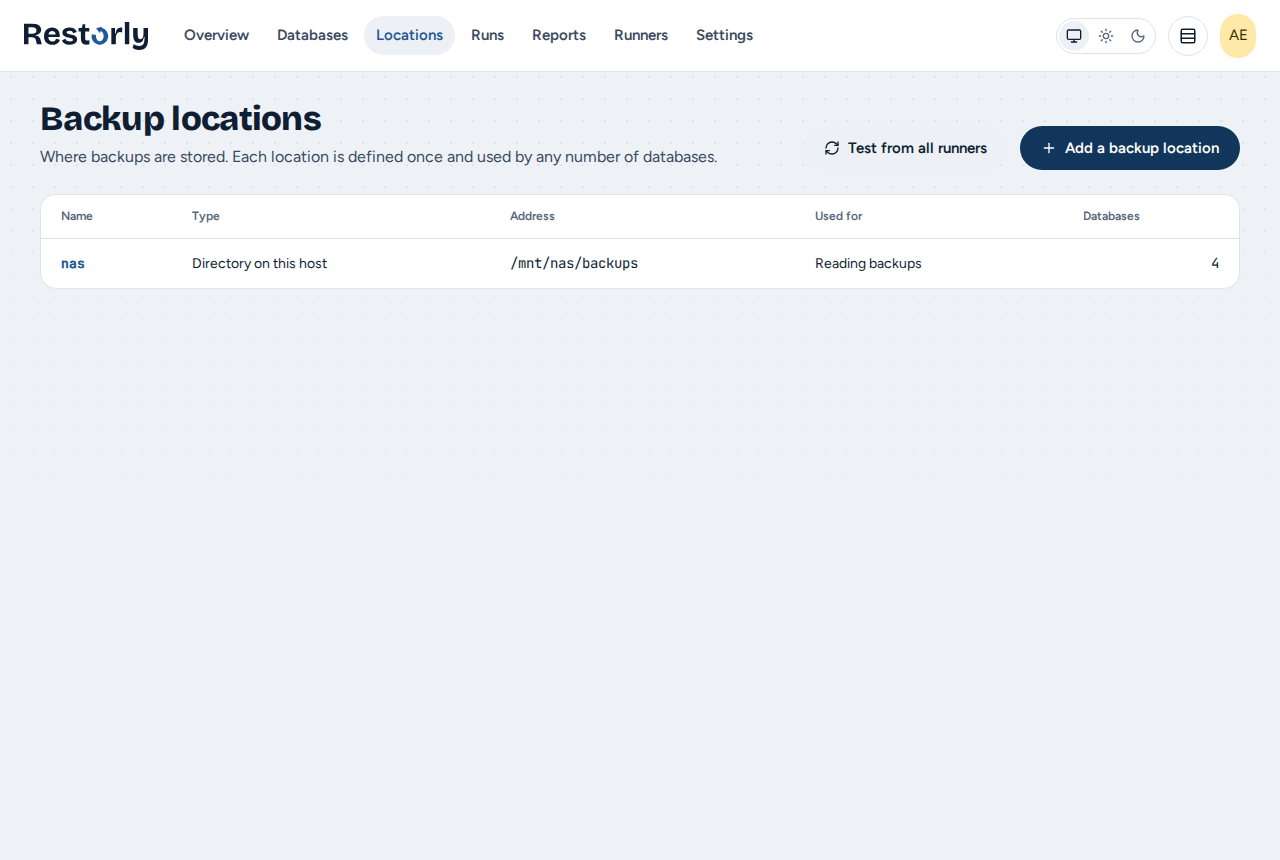
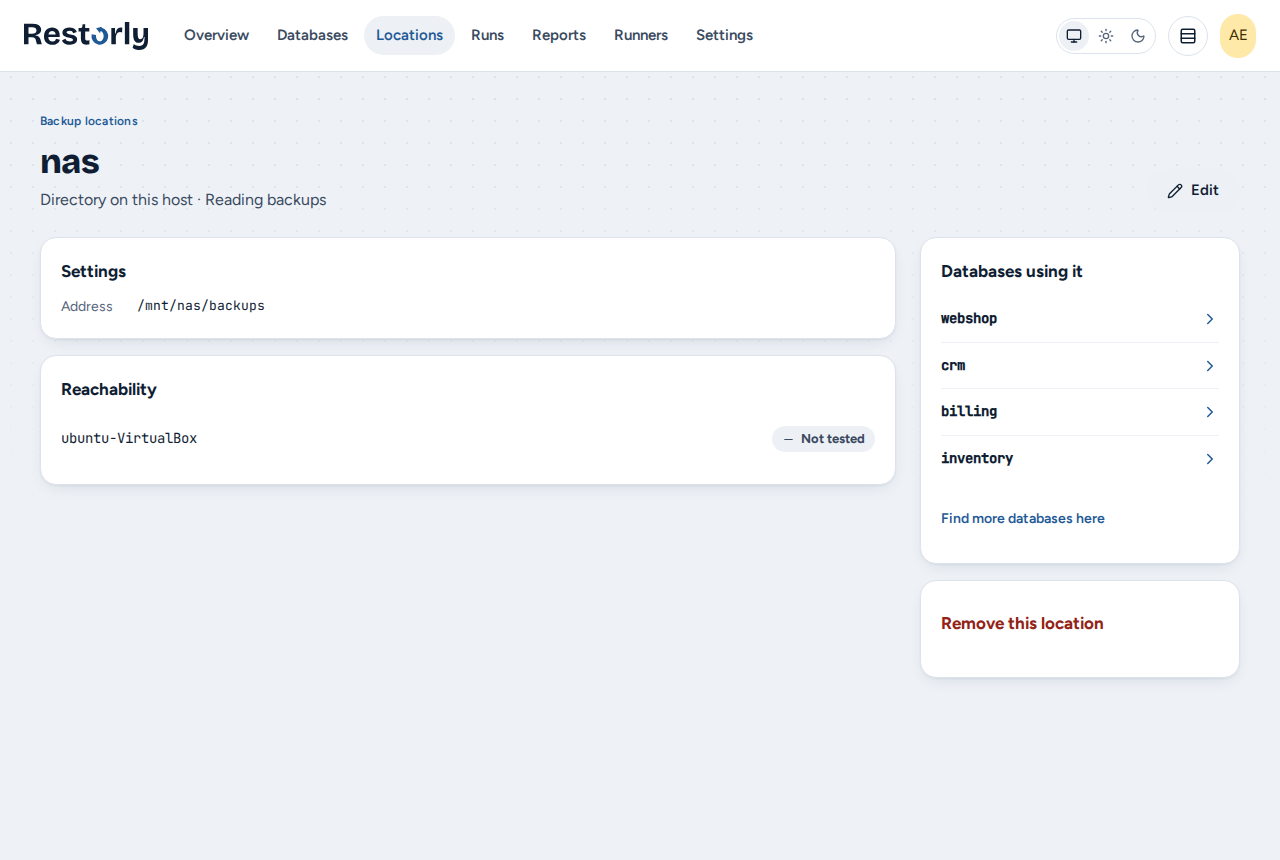
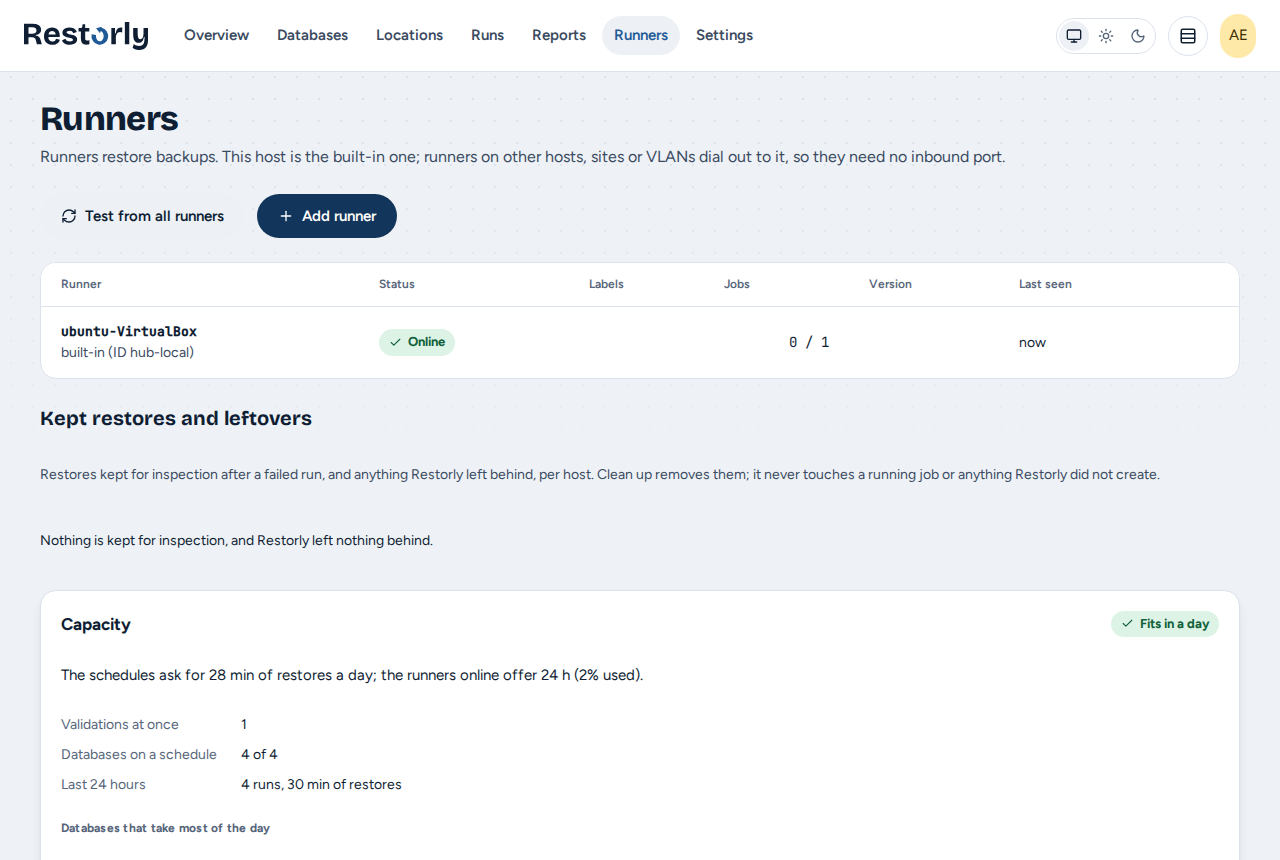
Locations lists where backups are read from or written to, with the databases that use each; a location's page tests it from every runner. Runners lists the hosts that restore, whether they are online, and which locations each can reach.
Settings
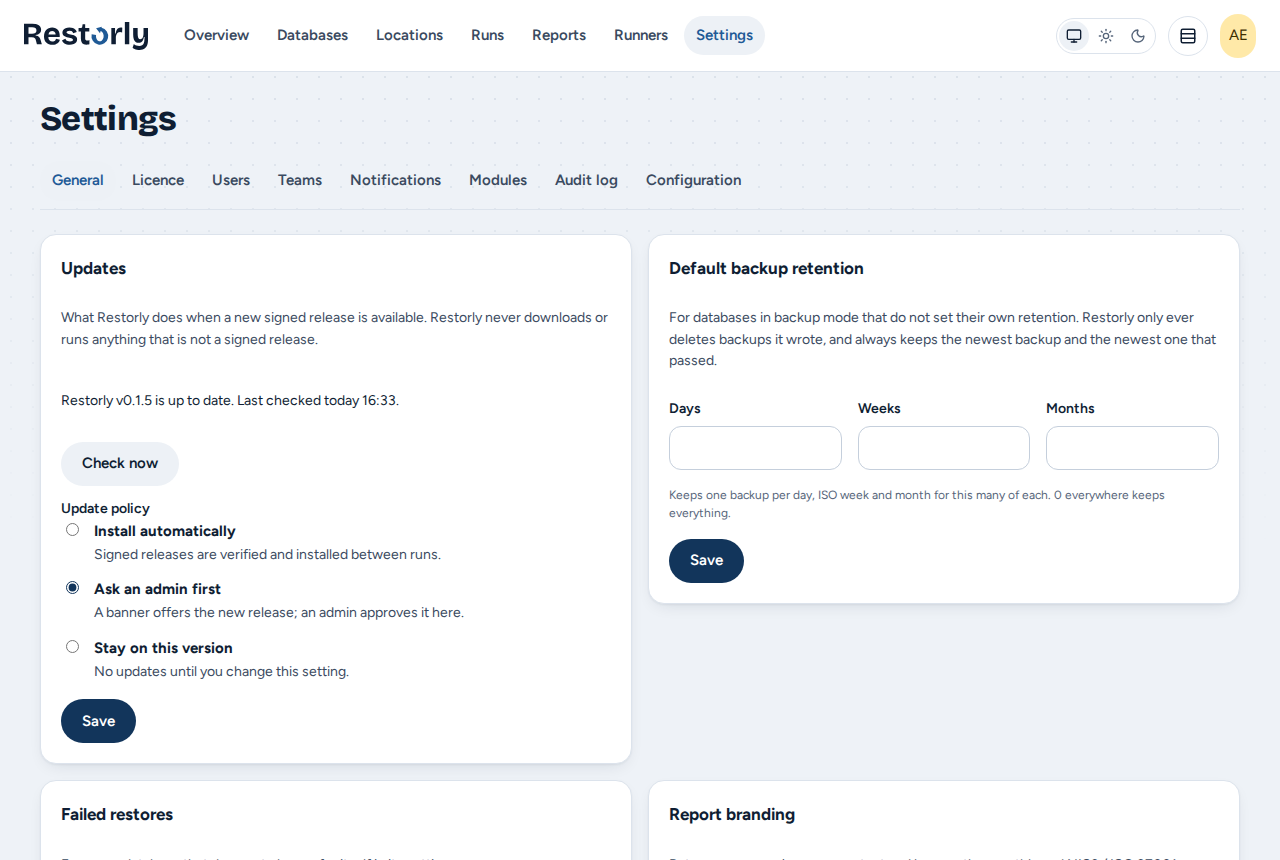
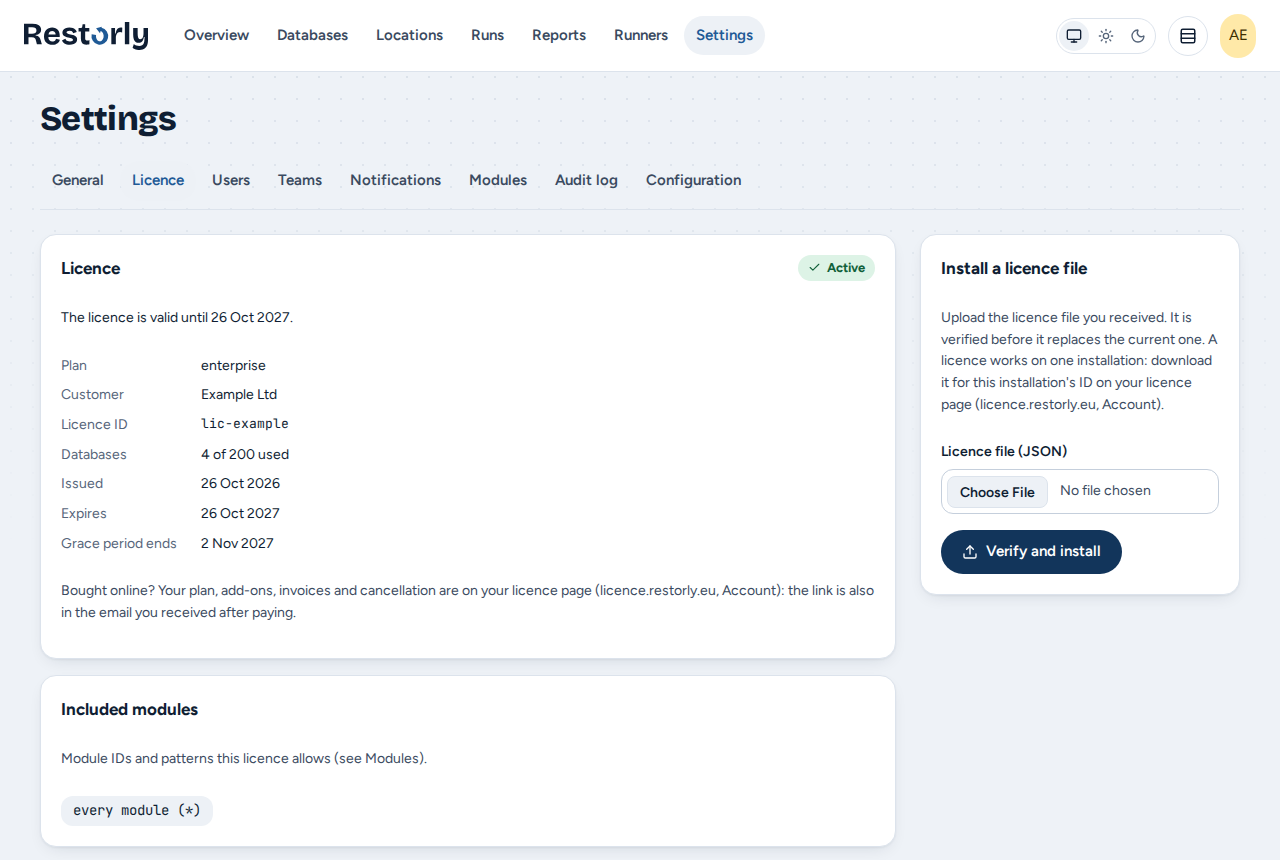
Admins manage the installation here: updates and certificates (General), the licence, users and teams, notifications, modules, the audit log and the configuration file. Everyone sees the licence.
Your account
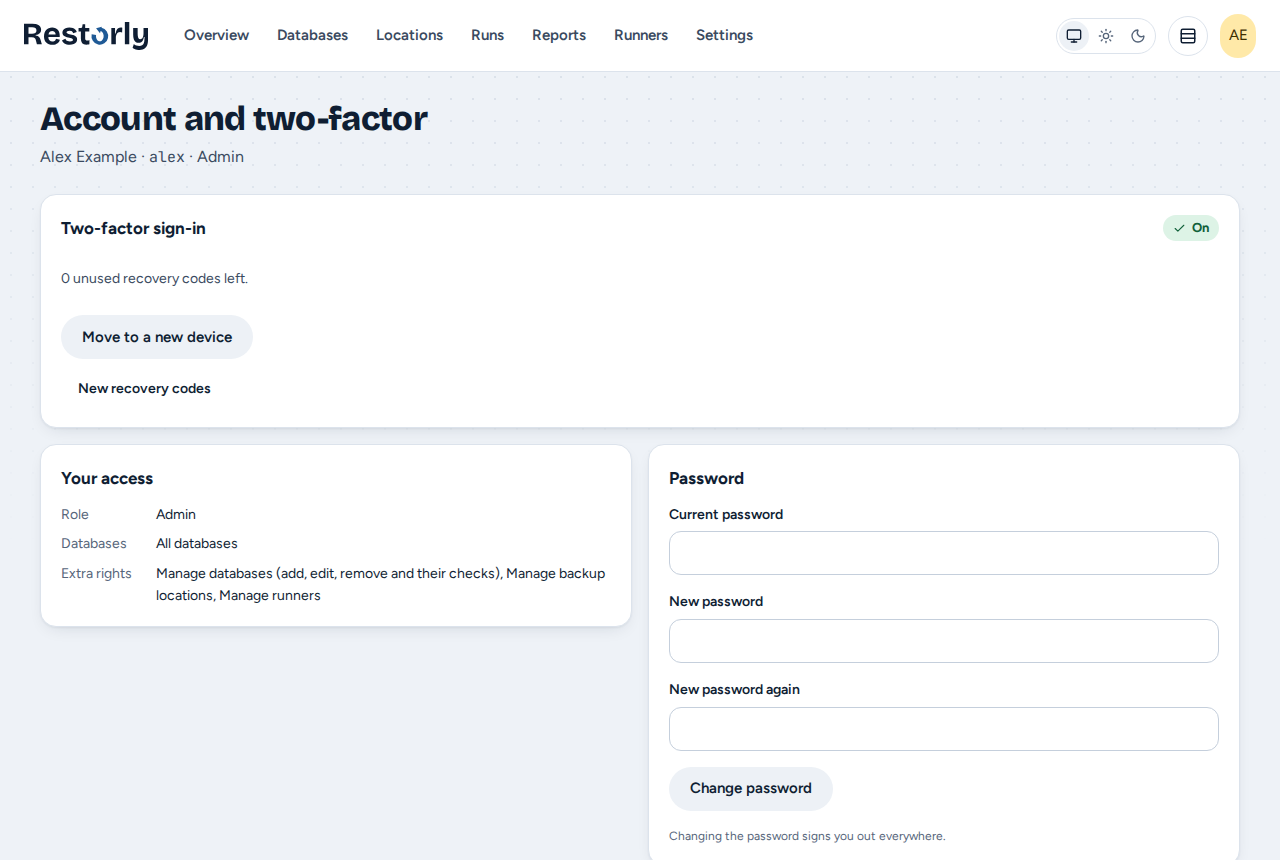
Behind your initials (top right) → Account and two-factor: what you may see and do, two-factor sign-in, your password and every browser signed in as you. The icons next to it switch between the system, light and dark theme.
Report a problem, in the same menu, opens a bug report on the licence site (licence.restorly.eu → Support) in a new tab, with this installation's version, licence ID and install ID filled in. You sign in there with your email; the panel itself sends nothing. Feature requests are on the same page. We reply on the ticket and by email, on working days, and you can answer either way.
First admin
A fresh install has no users. To prove you manage the host, run this on it:
sudo restorly panel setup-code --config /etc/restorly/config.yamlOpen the panel and enter the code (valid for 24 hours) with a username and password: at least 12 characters, and a few unrelated words work well.
Two-factor sign-in
Admins must set up an authenticator app (Aegis, 2FAS, Google Authenticator and similar) before they can use the panel. Operators and viewers may do it under Account and two-factor (the menu behind their initials). After confirming a code you get ten single-use recovery codes. Keep them safe: each one replaces a code once.
Roles
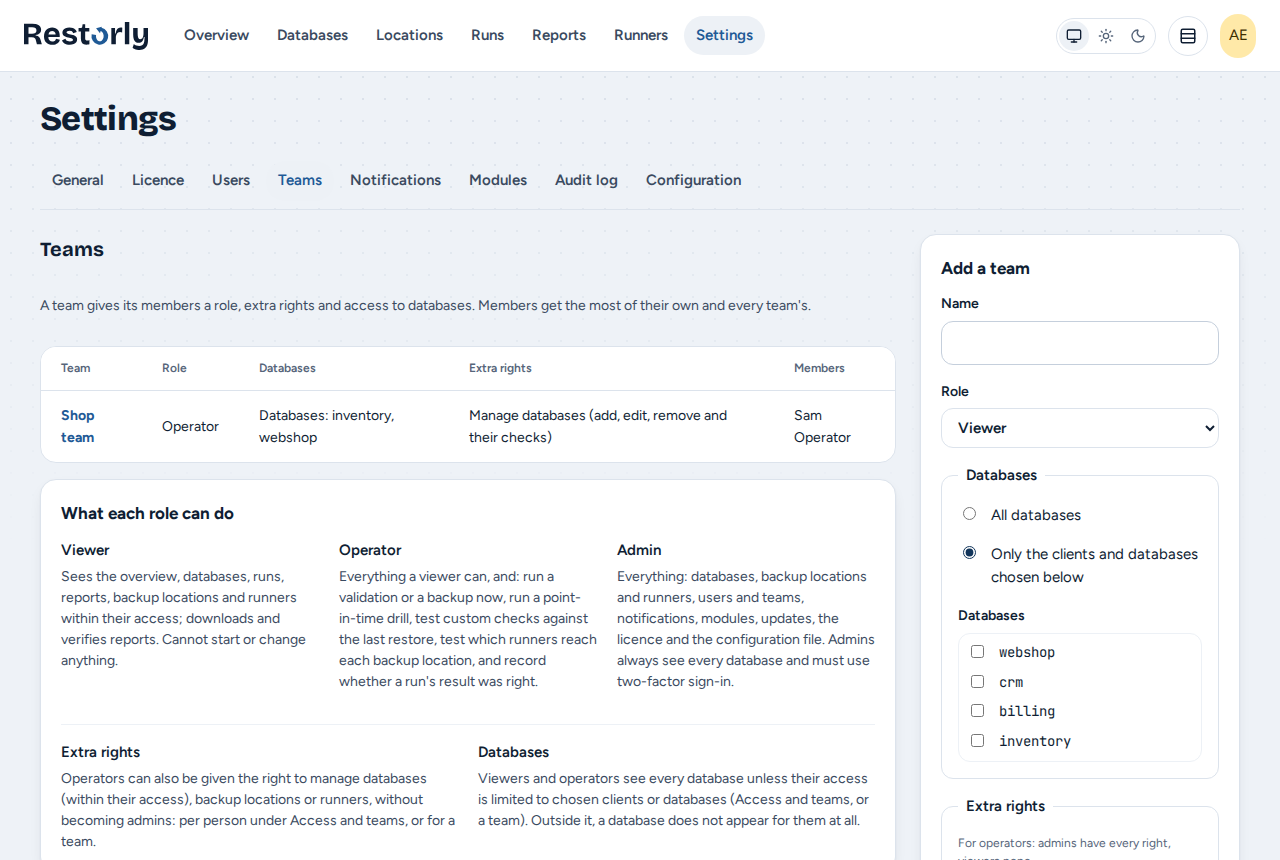
| Role | Can |
|---|---|
| Viewer | Sees the overview, databases, runs, reports, backup locations and runners within their access; downloads and verifies reports. Cannot start or change anything. |
| Operator | Everything a viewer can, and: run a validation or a backup now, run a point-in-time drill or an upgrade rehearsal, test custom checks against the last restore, test which runners reach each backup location, record whether a run's result was right. |
| Admin | Everything: databases, backup locations and runners, users and teams, notifications, modules, updates, the licence and the configuration file. Always sees every database; must use two-factor sign-in. |
The same summary is on Settings → Users and Settings → Teams.
Access to databases, extra rights and teams
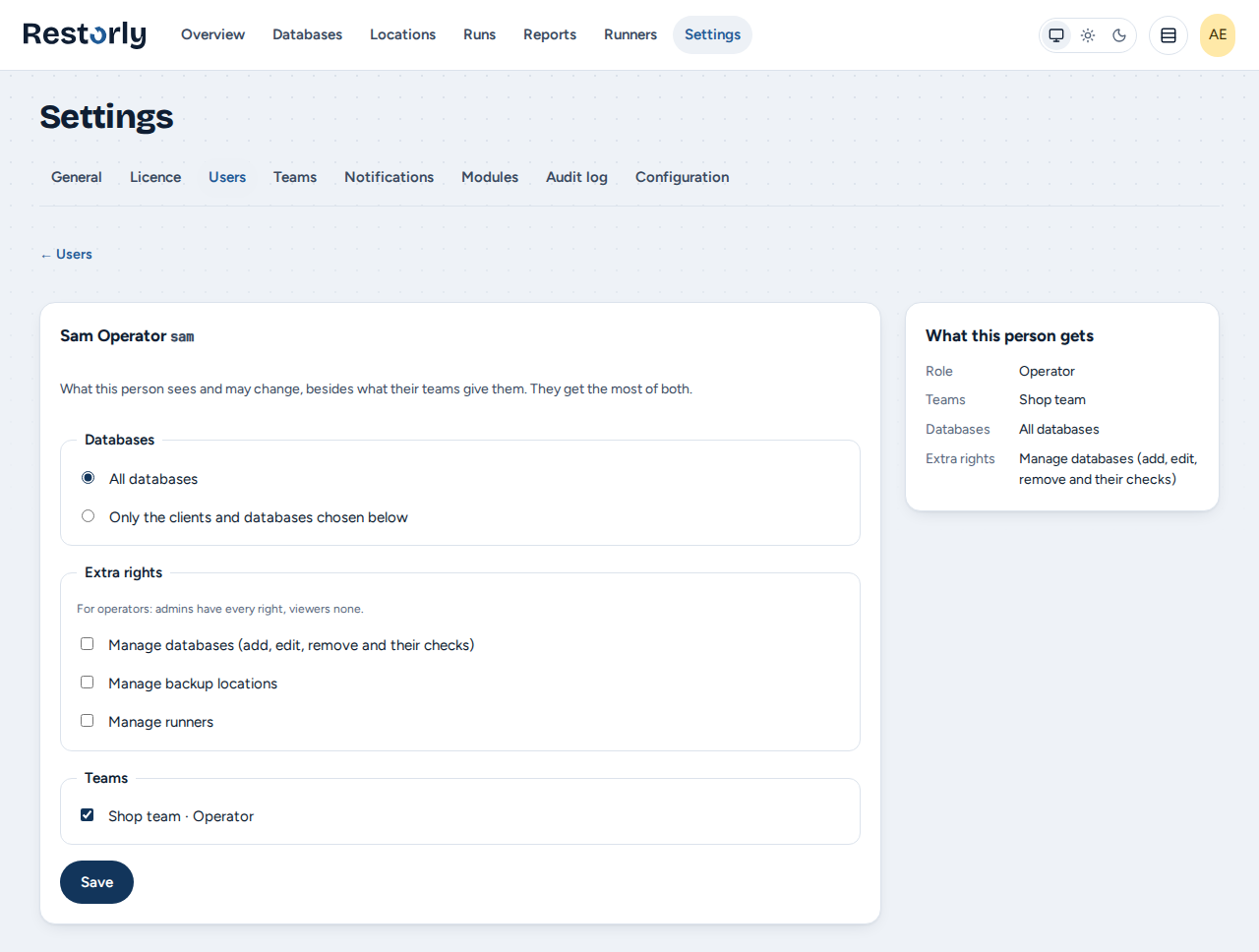
Besides a role, each person has an access: every database (the default), or only chosen clients (with every database of the client, also ones added later) and databases. With clients, the form lists each client with its databases under it, then the databases of no client, so a grant shows whose data it is. Outside it a database does not exist for them: lists, the overview, runs, reports and their downloads, monthly and evidence PDFs, and the backup locations their databases use; its address answers "not found".
Operators can be given extra rights: manage databases (add, edit and remove them and their checks, within their access; adding a database needs access to every database or to a whole client, and it must belong to one of their clients), manage backup locations and manage runners. Inspect kept restores (query a kept failed restore's data from its run's page, read-only) can be given to viewers too, so a client's staff can investigate a failure of their own databases without operating anything. Admins have every right and see every database.
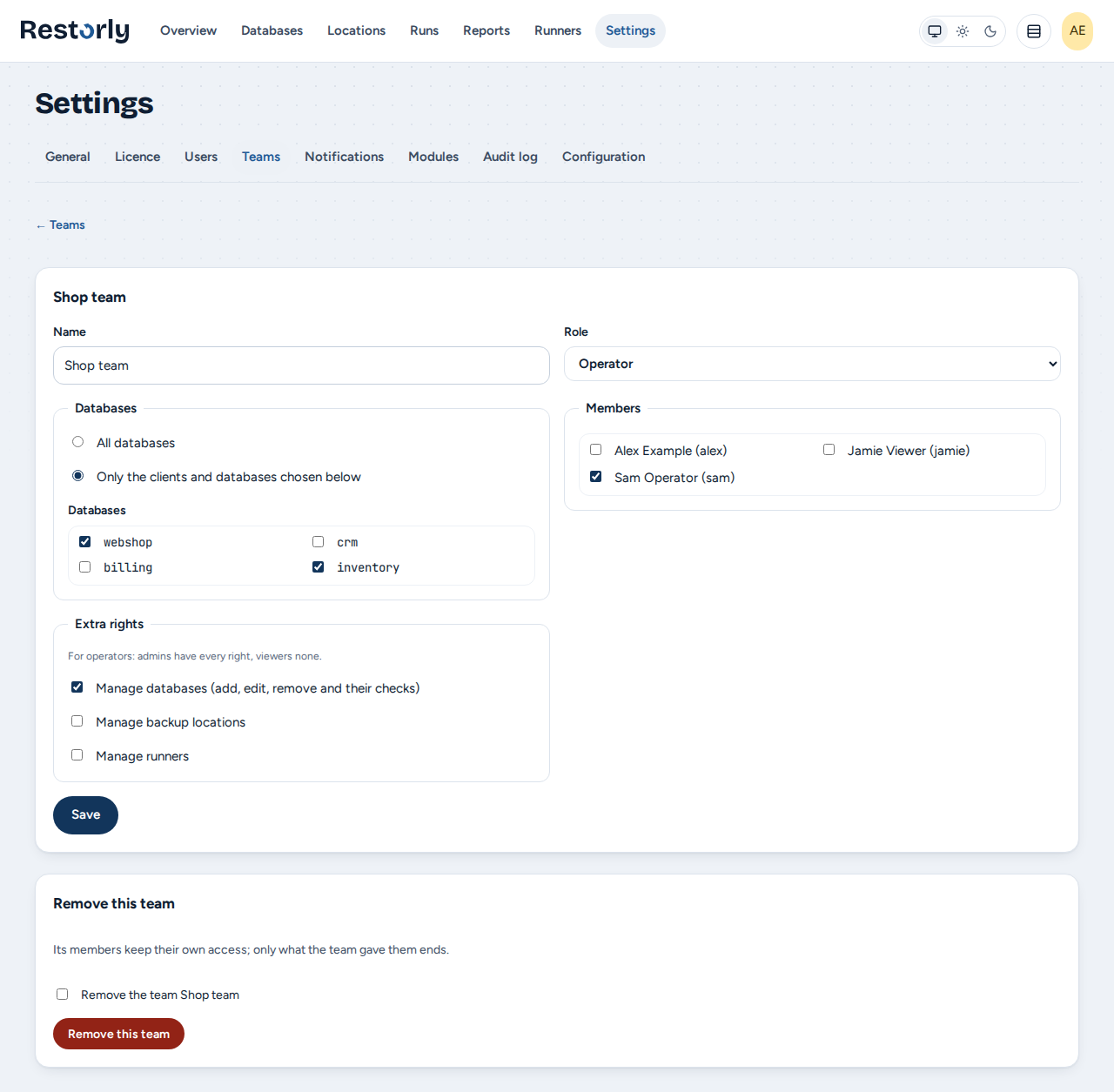
A team (Settings → Teams) gives its members a role (viewer or operator), extra rights and an access. A person gets the most of their own and every team's. Admins are made one by one (a team cannot give the admin role). Settings → Users → Access and teams shows and changes one person's own access, their teams and what they get in the end; Account and two-factor shows everyone their own. Every change is audited. On the host: restorly user access NAME --databases crm,shop --rights databases and restorly user list.
Locked out?
The CLI works on the host without the panel. Every command is audited.
restorly user list
restorly user passwd NAME        # new password; ends the user's sessions
restorly user reset-2fa NAME     # lost device: two-factor is set up again at the next sign-in
restorly user add NAME --role admin
restorly user role NAME operator
restorly user disable NAME | enable NAME | delete NAME
restorly user access NAME --all | --clients A,B --databases X,Y [--rights databases,locations,runners,inspect]
Passwords are read from a hidden prompt, or from stdin when piped, and never from the command line. The last active admin cannot be removed, disabled or demoted.
Sign-in protection
- After five failed attempts for a username or address, each further attempt waits twice as long, up to 15 minutes.
- Sessions end after 12 hours idle or 7 days in total.
- A password change signs the user out everywhere.
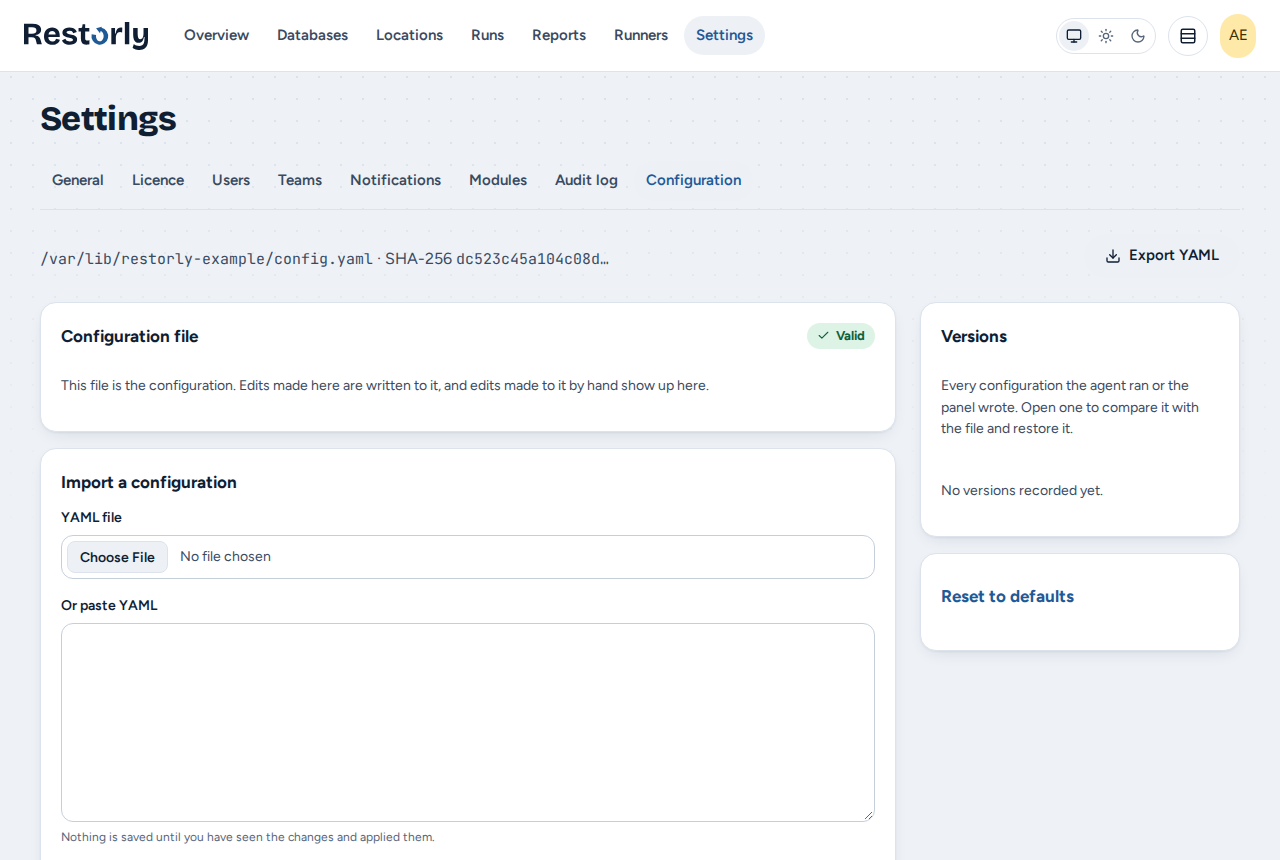
Configuration (Settings → Configuration, admins)
/etc/ is the configuration. The panel reads it every time, so hand edits, Ansible and similar tools keep working, and it writes it only like this:
- The new content is validated in full, exactly as the agent loads it.
- The file is replaced atomically (temp file and rename), keeping its owner and mode.
- The previous content is kept as a version, the change is audited (who, before and after hashes), and the agent reloads.
An edit carries the hash of the file it was based on: if the file changed in the meantime (a hand edit, another admin), nothing is written and you are asked to reload the page.
The panel writes the file from the schema, so comments and key order are not kept. The panel says so before its first write; export a copy first if you want them.
- Export YAML downloads the file as it is.
- Import checks an uploaded or pasted file and shows the changes as a diff; nothing is saved until you apply it.
- Versions lists every configuration the agent ran or the panel wrote, each with what produced it ("Database shop added", "Configuration imported"), from the audit log. Open one to see what restoring it would change.
When the file does not load
The agent keeps running the last valid configuration. The panel shows the errors with file:line and blocks editing until you either fix the file by hand, Restore last valid version (shown as a diff first), or Reset to defaults (keeps the agent: section; removes locations, databases, notifications and module choices; past runs, reports and backups are untouched). Before either is written, the file on disk is kept as config., so hand work is never lost.
File permissions
Writing atomically needs the service to create files next to the config. The packaged unit allows writes to /etc/restorly (ReadWritePaths=); give the directory to the service group with the sticky bit, so the service can replace only its own files and never master.key:
install -d -o root -g restorly -m 1770 /etc/restorly
chown restorly:restorly /etc/restorly/config.yaml
Settings
Every role sees Licence; the other tabs are for admins. Theme and density are in the top bar (on phones, in the menu behind your initials) and are kept for your account. Changes to the configuration go through the same write path as Settings → Configuration (validated, versioned, audited, reloaded).
| Tab | What you can do |
|---|---|
| General | Update policy (agent.); default backup retention (agent., used by databases in backup mode without their own backup.retention); Failed restores: keep a failed run's restore for inspection, and for how long (agent.); the panel certificate: what is served (plain HTTP on loopback, self-signed, or yours) with names, expiry and fingerprint, an upload of your certificate chain and key (checked first; a certificate that does not cover the address you are using needs confirmation), and a way back to the self-signed one; report branding, with the logo in use shown; the provider dashboard: the site name and the site key from your IT provider's dashboard page (stored encrypted as secret:/), saved together with module metrics.dashboard, the last send's result, Send now and Stop sending. |
| Licence | Status, plan, limits (databases, runners, panel users, custom SQL checks per database), expiry and grace period, included modules. Admins upload a renewed licence file: it is verified, and a renewal of the same licence that reaches further installs at once; one that ends earlier, is for another customer or licence, or would stop anything is shown with what changes and installed only after Install it anyway: the features on now that it does not include, usage over its limits (databases, custom SQL checks, runners, panel users), and what stops when it is installed (each database no longer validated, each check or feature that no longer runs). The same review applies to restorly license install, which needs --yes. The same upload installs the licence's report seal from the licence page: reports then show that a genuine licence made them; with online licensing it arrives by itself. The replaced file is kept as license., and the agent reloads. Shows this installation's ID (a licence is active on one installation; a file activated on another is refused). With online licensing, Renewal says whether the licence renews with your subscription by itself and when the licence server last answered, and admins can Check now instead of waiting for the next renewal; Paid until shows when the paid period ends, as licence files last 30 days at most and are renewed until then. Without online licensing, Renew it from a script shows the commands that renew it once a day: restorly license renew on this server, or a curl command carrying this installation's licence file for another machine (the licence server renews only for the licence's holder), then restorly license install (Renewing the licence from a script). A licence that renews by itself shows no expiry banner; when the licence server does not answer, the banner says so, and that nothing is needed if the subscription is active: the agent asks again every hour once the licence ends within two days. |
| Users | Add users with a first password, change roles, set a password, reset two-factor, disable, enable, delete; Access and teams per user (see above). The last active admin cannot be demoted, disabled or deleted, and you change your own password and two-factor under Your account, which also lists your signed-in browsers with Sign out the other browsers. Your plan limits how many users can sign in (users who are not disabled): at the limit adding or enabling one is refused with the reason, and disabling someone makes room; after a smaller plan nobody is signed out. The same rules apply to restorly user. |
| Teams | Create teams with a role, extra rights and an access, choose their members, remove them (members keep their own access). |
| Notifications | The configured channels (webhook URLs are secrets: only their reference is shown), the mail server, recent deliveries, and Send a test to every active channel. Change channels or the mail server opens the same step as the setup wizard: add or remove channels, change the mail server, Send a test with those settings before saving, then the review shows the change. |
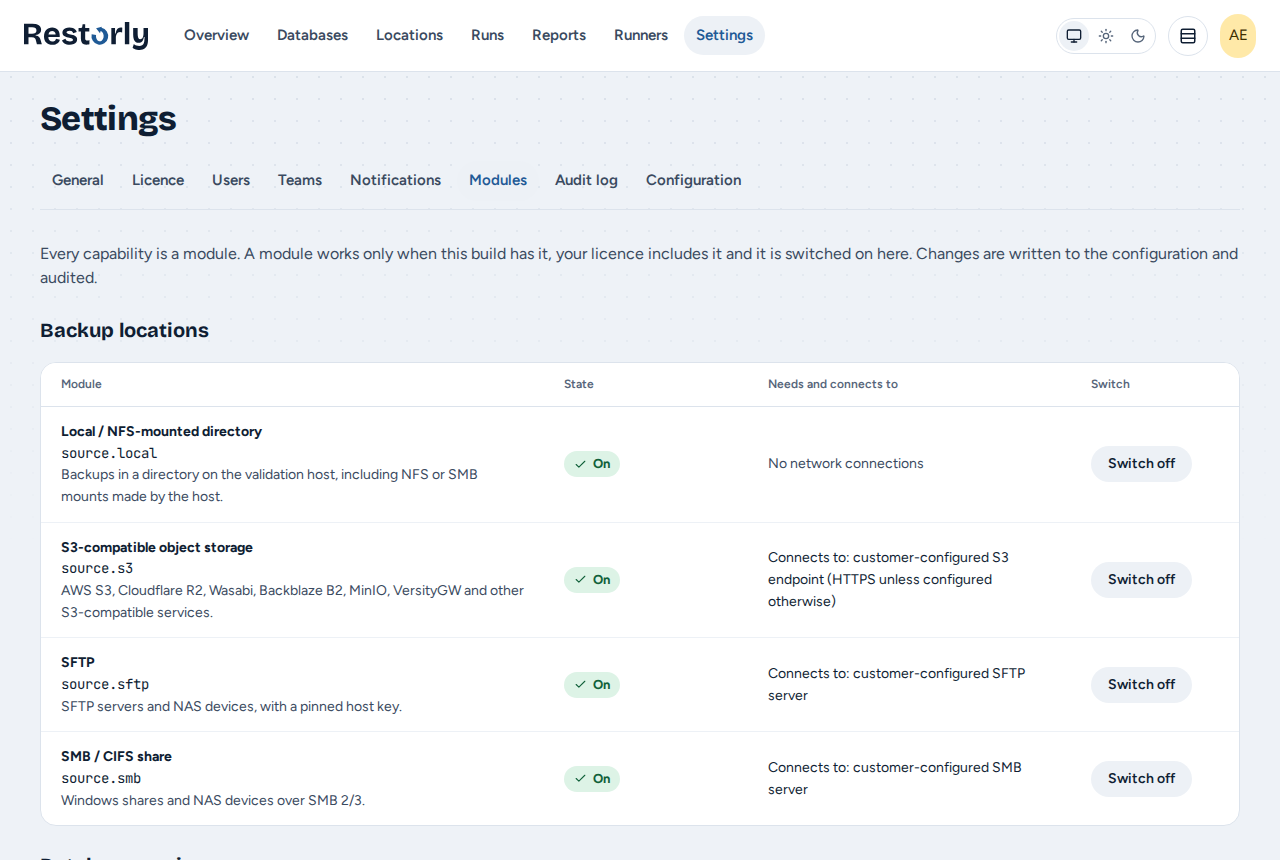
| Modules | Every module with its state and why: not in your plan, off, or on but waiting for a module it needs; what it connects to. Switching one on or off writes the modules: section and is audited with the module ID. The panel module itself cannot be switched off from the panel. |
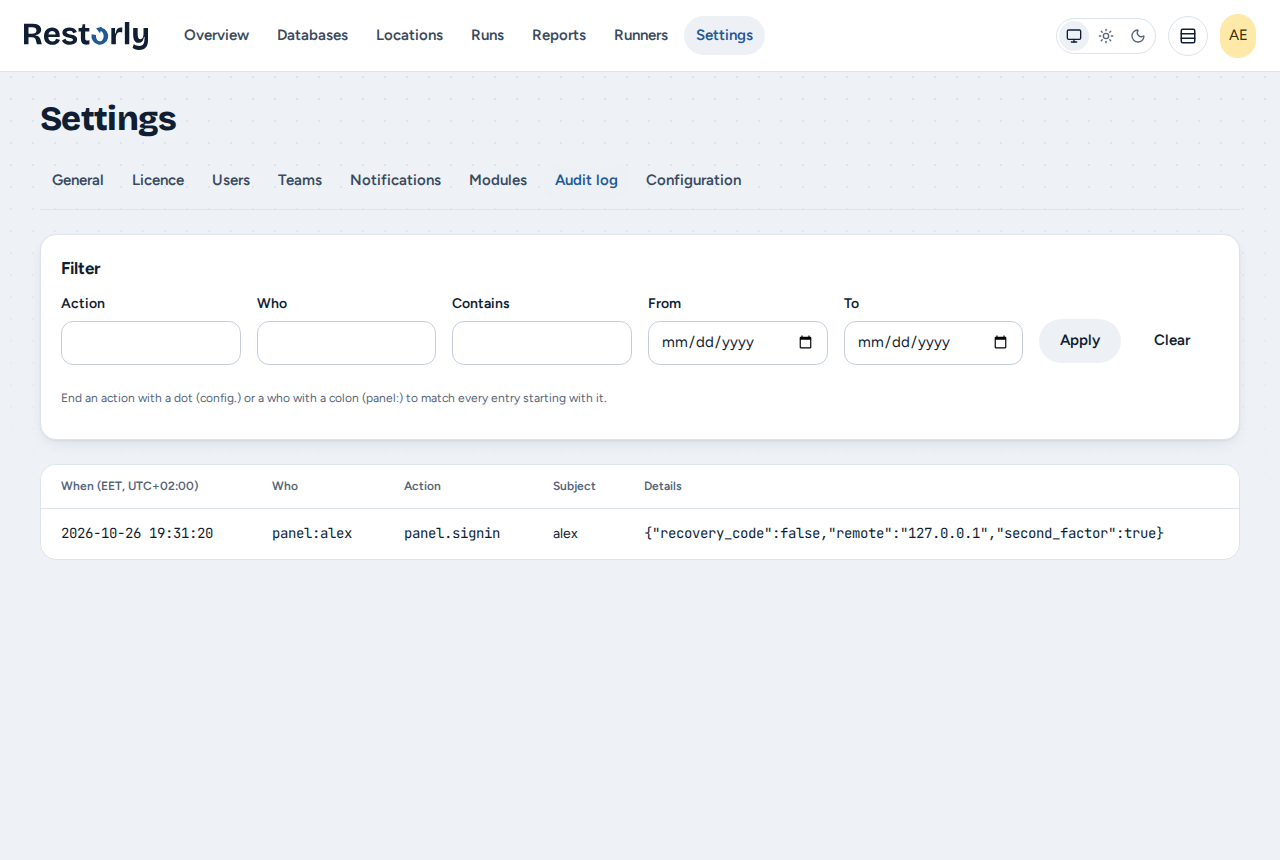
| Audit log | Every audited action, newest first, with the time in the host's time zone (named in the column). Filter by action (config. matches all config actions), by who (panel: matches every panel user), by text and by date. |
| Configuration | See above. |
Setup wizard and "add" flows
Admins (and operators with the matching right, for databases and backup locations) open the wizard from Set up Restorly on an empty install, Add a database and Add a backup location (Databases). It works one step at a time with a progress rail; your draft is saved as you go, so you can leave and come back, or Discard draft.
| Flow | Steps |
|---|---|
Set up Restorly (/wizard/setup) | Licence → Admin and two-factor → Preflight → Runners → Storage → Credentials → Database → Checks → Schedule → Notifications → Review |
Add a backup location (/wizard/location) | Storage → Credentials → Review |
Add a database (/wizard/database) | Database → Checks → Schedule → Review |
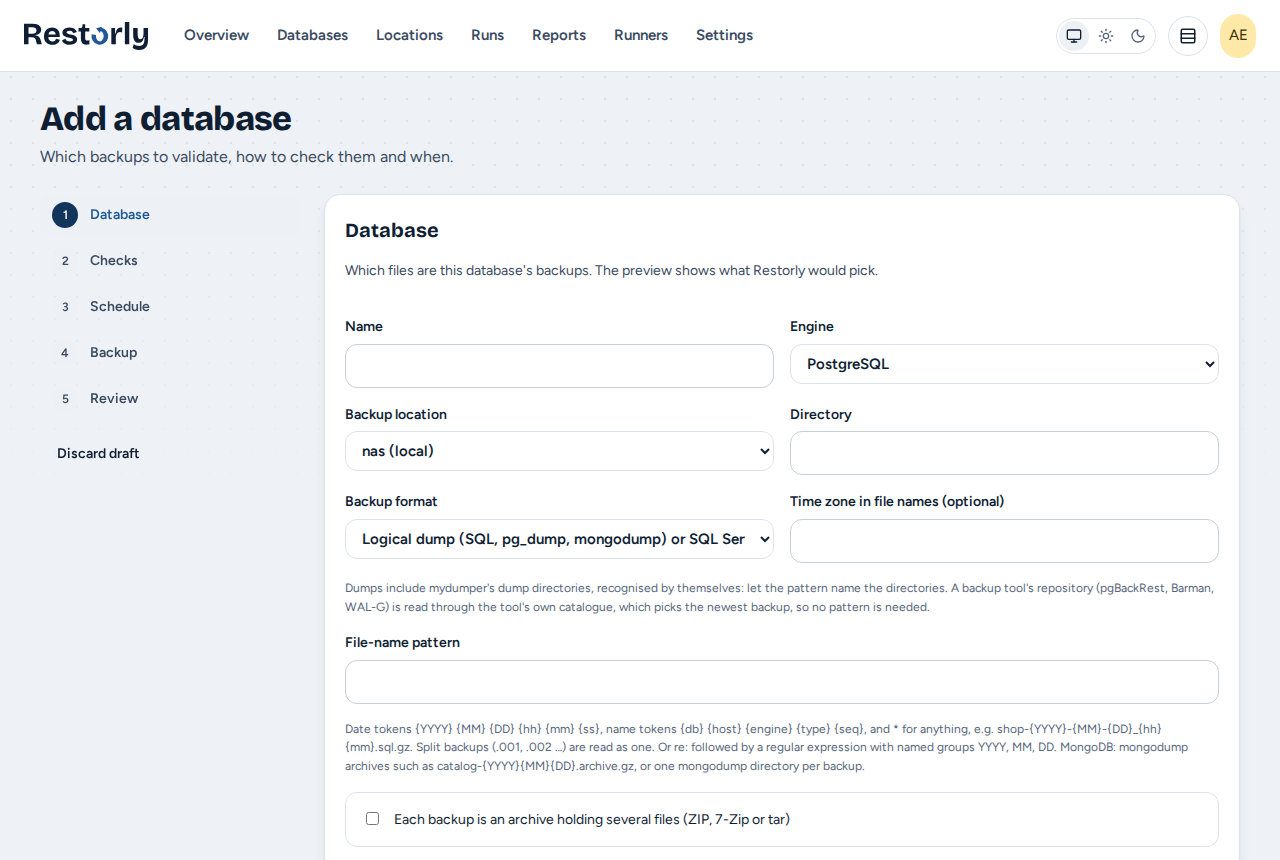
- Next only moves on when the step is complete: preflight has no failure, the storage connection test passed for exactly these settings, the naming pattern matches a backup (or you confirm backups arrive later), the schedule is valid.
- Archives holding several backups (database step): tick Each backup is an archive holding several files (ZIP, 7-Zip or tar) and give the name pattern of this database's file inside each archive, with the same tokens as the name pattern; with date tokens the newest file is validated. Check the archive lists the newest archive's files and marks the one that will be validated; Next waits for it.
- Backup tools' repositories (database step): for PostgreSQL, choose pgBackRest repository, Barman or Barman Cloud or WAL-G as the format, give the repository's path in the location (pgBackRest's
repo1-path, Barman Cloud's destination path orbarman_home, WAL-G's prefix) and pgBackRest's stanza or Barman's server name. No pattern applies: the tool's own catalogue picks the newest backup. Check the repository reads that catalogue as a run does and shows the newest backup; Next waits for it. mydumper's dumps are Dumps: let the pattern name the dump directories. - SQL Server's differential and log backups (database step): tick Also restore the differential and log backups after the full one; the patterns offered are Ola Hallengren's layout (
FULL,DIFFandLOGin the database's directory), and with them an empty pattern finds the full backups too. Other layouts give each kind its pattern, relative to the path. - Encrypted backups (database step; Business and Enterprise, ADR 0094: on other plans the step says so instead): tick These backups are encrypted, choose how (age, GnuPG, OpenSSL, a ZIP or 7-Zip archive with a password, or SQL Server's certificate) and give the key, password or certificate files. They are stored encrypted at once; an empty field keeps the stored one. Test decryption opens the newest backup with them, and Next waits for a passing test (a new key or password needs a new one). SQL Server's certificate is checked by the first run.
- Storage: choose the type and, for object storage, the provider; enter the address and credentials, then Test connection. For SSH/SFTP hosts, copy Restorly's SSH key (restricted to SFTP) to the host, and confirm the server's host key fingerprint the test shows. The test lists the directory and says when it is missing or empty; for a location backups are written to (role destination or both, with backup mode on) it also writes a hidden test file and deletes it again.
- Credentials are stored encrypted the moment you enter them and only referenced from the configuration (
secret://name); they are never shown again. - Database: the live preview lists the directory as validation will see it: the newest matching backup highlighted, other matches with the time read from their names, unmatched names struck through, and a warning when another database claims the same files. The same check on the command line:
restorly pattern test --target ID. - Review shows the change to the configuration file as a diff. Create writes it through the same path as Settings → Configuration; if the file changed since you opened the review, nothing is written and the review shows the current file.
Import databases (Business and Enterprise)
When one server's backups land side by side (one MariaDB server with 15 databases, each with its own nightly dump), set up the first database in the wizard and add the rest at once: Databases → Import databases (module targets., part of the Business and Enterprise plans; admins and operators who may add databases).
- Copy the settings of the database you set up. Restorly takes its naming pattern and puts
{db}where its own name is: in the file name (shop_{YYYY}{MM}{DD}.becomessql. gz {db}_{YYYY}{MM}{DD}.) or as the last folder of its path (sql. gz /mysql/shop/becomes/mysql/{db}/…). Or give a pattern with{db}yourself. - Find databases lists every name the pattern finds in that backup location, with how many backups and the newest. New ones are ticked; system databases (
mysql,postgres, …) are not; ones already set up say which database covers them. - Review shows the new databases, their start times (spread over the minutes you choose after the copied database's, so the restores do not all start at once) and the configuration that will be added.
- Add writes them in one change, recorded in the audit log.
Each new database copies the location, path and pattern (with its own {db}), engine, format, time zone, freshness limit, image, schedule, runner, client, encryption, built-in checks and thresholds. Custom SQL checks, the live comparison, backup mode, copies, staging and point-in-time tests belong to one database and are not copied. The licence's database limit applies: a selection over it says how many more fit. Nothing touches your production servers: the list comes from the backup location.
On the command line, the same import writes the whole new configuration to stdout for Settings → Configuration → Import, or changes the file with --apply:
restorly import databases --like shop > new-config.yaml      # review, then import in the panel
sudo restorly import databases --like shop --apply && sudo systemctl reload restorly
restorly import databases --like shop --only crm,billing --spread 60 --apply
Custom checks
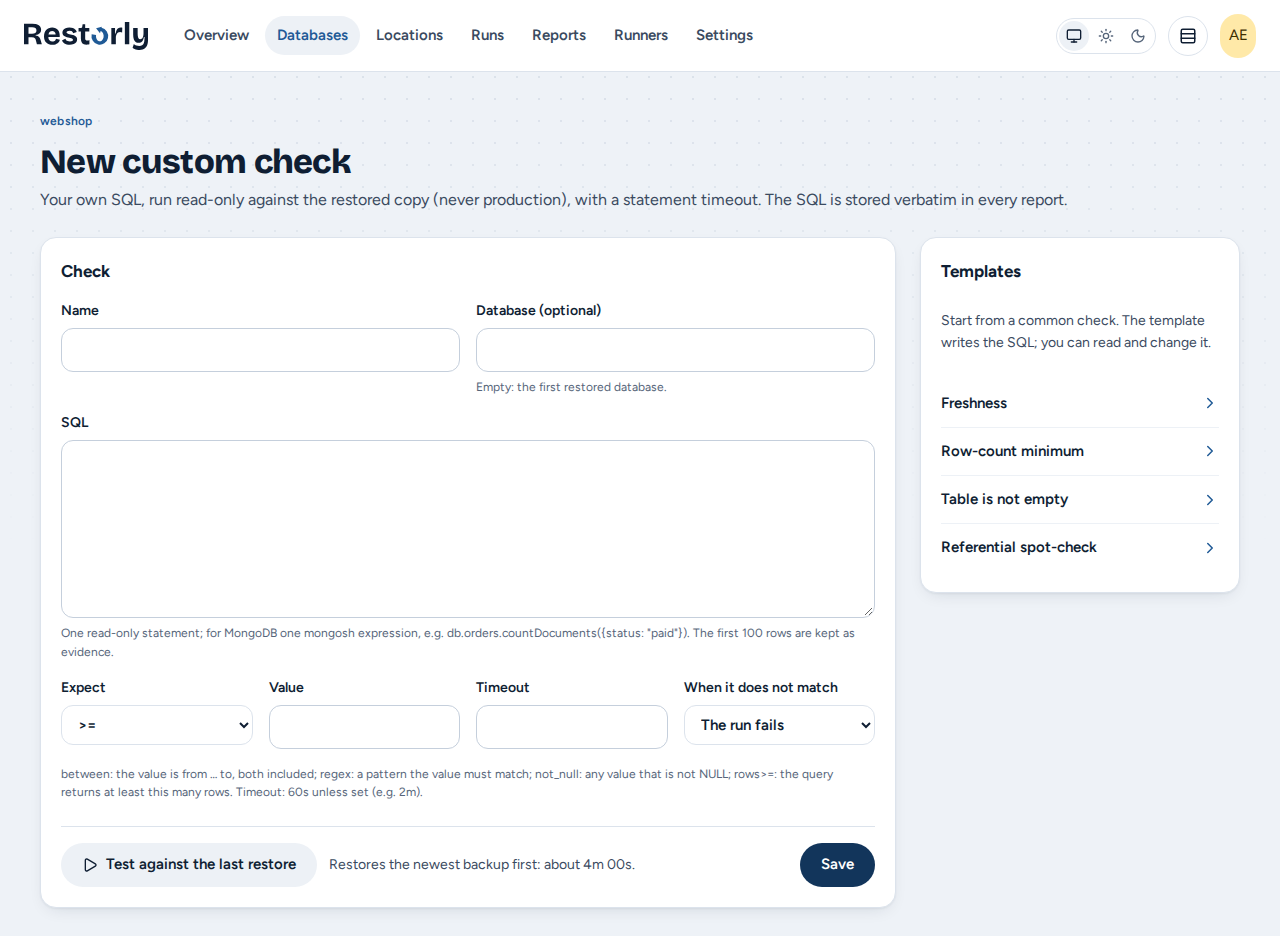
On a database's Checks tab, admins Add a check or Edit one; operators Test all checks. The editor covers the name, the database (empty: the first restored one), the SQL, the expectation (operator and value), the timeout and whether a mismatch fails or only warns the run.
- Templates (freshness, row-count minimum, table not empty, referential spot-check) write the SQL for your engine; you can read and change it before saving.
- Test against the last restore restores the newest backup into a throwaway sandbox and runs the check exactly as a validation run would: read-only, with its timeout, keeping the first rows as evidence. The result appears in place (it takes about as long as the last restore). Nothing of a test is saved or added to the report history.
- Test on the kept restore (and Test all on the kept restore on the Checks tab) appears when this host keeps a failed run's restore of the database for inspection: the check runs on that copy in seconds, the same way (read-only role, timeout, first rows), without restoring the backup again. Restorly starts the copy if it is stopped and stops it again afterwards, unless someone has it open. A kept restore on a remote runner is not offered: the test there restores afresh.
- Saving goes through the configuration write path (validated, versioned, audited, reloaded).
- Your plan's limit (custom SQL checks per database): at the limit Add a check is disabled with the reason, and the setup wizard adds no more; editing, testing and deleting checks always work. A database with more checks than the limit (after a smaller plan, or written into the configuration file) runs the first ones in its list: the others are marked Not run here and recorded as skipped, with the reason, in every report. Reorder or remove checks to choose which run.
Runners
Runners lists the built-in runner (hub-local, this host) and every remote runner with its labels, jobs, version and last heartbeat; a runner not seen for 5 minutes is Offline and its databases are skipped (a signed report says why) rather than failed.
- Add runner (admins) shows a one-time join command (valid for an hour). It needs module
runners.remote,hub.listenandhub.advertise(a change tohub.listentakes effect aftersystemctl restart restorly). On the new host: install Restorly (the package creates the master key and the state directory), add therestorlyuser to thedockergroup, setrunner.labels(and, for backup jobs,modules: enable: [backup]) in/etc/, run the join command (it starts withrestorly/ config. yaml sudo), thensystemctl enable --now restorly-runner(deploy/).systemd/ restorly-runner. service - Test from all runners (operators) checks every backup location from every online runner; the matrix below the list shows the results, and a runner whose last test of a location failed is not given that location's databases.
- A database's
runner_selector(labels) decides which runners may take it; among those, the one with the most free slots takes it (hub-localon a tie). - Validations at once add up over the runners: the hub's
agent.plus each online runner's slots (max_parallel_runs runner.in its configuration). Each runner added adds parallel work. A database whose runners are all busy waits for a free one, in turn, and is never skipped for it; each run records the runner and how long it waited.max_parallel - Remove revokes a runner at once.
- Reports from remote runners carry the runner's signature and the hub's;
restorly report verifyprints both.
Capacity
The Capacity card says whether the schedules fit in a day: the restore hours the databases' schedules ask for, from each database's real run times (the median of its last five; 15 minutes while it has not run yet), against the hours the online runners offer (their slots × 24). Fits in a day up to 80%, Tight up to 100%, Does not fit beyond, with what to do: add a runner, give runners more validations at once (only where the host has the CPU, memory and disk for them), or validate some databases less often. It also names databases whose runs take longer than the time between them, runner-label groups that run out of room, and the last 24 hours: runs, the busiest runner and the longest wait. When it is tight or does not fit, the Overview lists it under "What needs you". restorly capacity prints the same (exit 0 fits, 1 tight, 2 does not), and /metrics has restorly_capacity_*.
Large databases: a database whose last restore put 100 GB or more on disk or took two hours or more is too large for a shared runner. The card, the database's page and "What needs you" say so, with the runner to give it (8 vCPU and 16 GB; 16 vCPU and 32 GB from 500 GB or six hours), the free disk its restores need, and the settings: a runner with a label and runner.dedicated: true, the database's runner_selector and resources. The setup wizard says it before the first run when the backup's size alone makes it large. See Large databases.
Host readiness
Host readiness says whether each runner can restore the database images its databases need, so a host problem shows up before tonight's run fails, not in its report. A few minutes after Restorly starts, every day after that, and soon after a database is added or changed, each runner that may restore a database (its labels match the database's runner_selector) checks the image the database's next restore would use: its own image, the one its last restore used, or, for a new database, the one its newest backup's version needs. For a database that rehearses upgrades, it also checks the next version's image the rehearsal restores on, once a restore has passed. The check:
- downloads the image if the host does not have it (as the first run would), or finds it present with
pull_policy: never; - checks it is built for the host's CPU architecture;
- runs the server's and its tools'
--versionin a locked-down container (no network, read-only, user nobody, small limits, removed at once): this proves they run on the host's CPU (MongoDB 9.0's tools need x86-64-v3, which some virtual machines hide) and that the server accepts the host's Linux kernel (MongoDB 8.0 and 8.3 refuse 6.19 and newer; their restores use 8.2, and so does the check).
Nothing of yours is read for it except, for a database that has not restored yet, the start of its newest backup (as a run reads it, and only on the hub's own runner: remote runners' backups never pass through the hub, so their new databases are checked after their first restore). A runner that cannot restore an image is listed under "What needs you" and on the database's page, with what to do; an image only an upgrade rehearsal needs is named as the rehearsal's (a warning on the database's page: its nightly runs are not affected). Check again (operators) checks everything now. restorly preflight runs the same check for the images already on the host, GET /api/v1/readiness and the metric restorly_runner_image_ready give the results. Switch it off with module readiness (Settings → Modules).
Clients (managed IT providers)
Settings → Clients adds, renames and removes clients and chooses each client's databases (a database belongs to one client; a client is removed only once no database or notification channel uses it). Each client shows who has access to it as a whole (people and teams, Settings → Users and Teams). Removing a client also takes it out of their access: their accounts and other access stay, and a client added later under the same name inherits nothing (a new client never takes an ID that someone's access still names). It is there when your plan includes clients (Business and Enterprise, module multisite); with the module switched off in Settings → Modules it shows the clients and changes nothing. Every change is written to the configuration and the audit log, as if made in the YAML (clients: and targets[].client).
With module multisite on and clients: in the configuration, the top bar shows a client switcher. All clients shows everything; choosing a client filters the overview, databases, runs and reports, and Reports offers one monthly PDF per client, titled with the client's name, to hand on to that client. With branding: in the configuration, those PDFs carry your name, contact and logo: Settings → General → Report branding. A database belongs to a client through targets[].client (the wizard's database step asks for it; an admin who sees every database can choose New client… there and name it, and the client is added with the database when the wizard finishes).
Evidence for NIS2, ISO 27001 and DORA
Reports → Evidence for NIS2, ISO 27001 and DORA downloads a PDF for a period of whole months (up to 12): which backup controls your signed reports give evidence for (module report.). It also has the rows of Germany's BSI IT-Grundschutz. With a client chosen, it covers and names that client.
- Controls: NIS2 Implementing Regulation (EU) 2024/2690, Annex point 4.2.2 (a)–(f) and 4.2.3; ISO/IEC 27001:2022 A.8.13 and A.5.30; DORA (Regulation (EU) 2022/2554) Article 12; and BSI IT-Grundschutz module CON.3 (Datensicherungskonzept). Each is Evidenced, Gaps (with the databases that lack evidence) or For review (it depends on facts outside Restorly, such as where the backups are stored and who can reach them).
- Only signed reports count. Unsigned reports, or reports whose signature does not verify, are counted separately and left out.
- Regular testing: a database counts as regularly checked when no more than 8 days pass without a validation in the period (
restorly report evidence --max-gap-days N, ormax_gap_daysin the API, to change it). - The PDF ends with the regulation text it refers to and an index of every report used, with its SHA-256, so an auditor can check each one at restorly.eu/verify in a browser, or with
restorly report verify.
It is evidence for an assessment, not a statement of compliance.
Monthly by email: a notification channel with the event monthly_evidence (Monthly evidence report in the setup wizard's notifications step) gets the previous month's report for every database on the 1st at 07:00 host time: attached as a PDF to an email, as a notice with its status and figures on Slack, Teams or a webhook. Point an email channel at your compliance or audit address and the folder fills itself. Settings → Notifications → Send last month's evidence (admins) sends it now, to check the channel; the 1st of the month then does not send it again.
Recovery key test
Encrypted databases (age) show a Recovery key test card on the database's Source tab. An admin pastes the recovery key kept outside Restorly (the escrow key); Restorly decrypts the start of the newest backup in memory and shows whether the key opens it. Only the key's public half and the result are recorded, in the audit log; the NIS2 / ISO 27001 evidence report lists the last successful test per database. The same test: restorly key-test --target ID < key.txt.
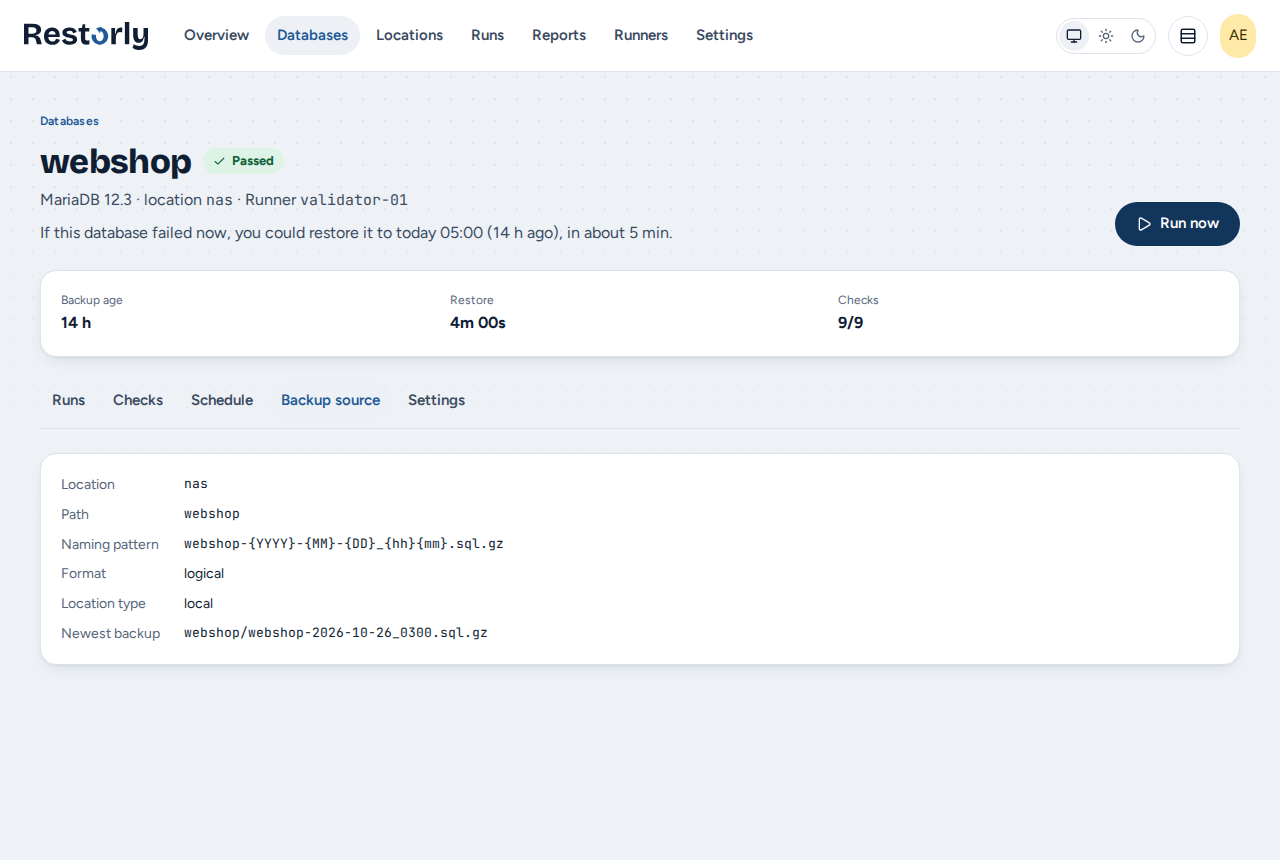
A database with a point-in-time archive (pitr, module addon.pitr) also has a Point-in-time drill card on its Source tab (operators): pick a moment in UTC, and Restorly restores the newest backup taken before it and replays the archive up to it. The drill shows under Runs with the point on its run page, and later runs are not compared with it. The same drill: restorly run --target ID --pitr-to TIME.
A database in backup mode has a Retention tab: every backup Restorly took, with what its retention policy does with it (Keeps or Deletes) and why (the day, week or month it is the newest of, the newest backup, among the newest that passed validation), and how much space the deletions free. A new or changed policy deletes nothing until an admin confirms this preview (Confirm this policy; "What needs you" lists it until then); after each prune Restorly checks that exactly the files it planned to delete went and the kept ones are still there, and a difference is a failed report, notified. The same preview: restorly backup prune --target ID --dry-run; confirm with --confirm.
A database that rehearses upgrades (upgrade_rehearsal, module addon.upgrade, Business and Enterprise) has an Upgrade rehearsal card on its Schedule tab. Each week (Sundays 05:00 by default), and at once with Rehearse now (operators), the backup of its latest restore that passed is restored on the next major version Restorly supports, for example PostgreSQL 17 on 18. Its checks run there, and every table's row count is compared with that restore (upgrade.rows). The card shows the versions and the image, when the next rehearsal runs, the latest result with the checks that did not pass (or why it was skipped, for example on a runner too old for rehearsals: update the runner), or why there is nothing to rehearse: a database already on the newest version, physical backups (they start only on their own major version) or no restore that passed yet. While a rehearsal runs the database shows as running, and a run asked for meanwhile starts after it. Rehearsals show under Runs as Upgrade rehearsal on …, never as the database's status; the event upgrade_rehearsal sends them to the channels that ask for it. Opt in with Rehearse the next major version every week in the database's schedule step. The same rehearsal: restorly run --target ID --rehearse-upgrade.
Sign-in with your identity provider (OIDC)
With module auth.oidc on and auth.oidc configured (see docs/config.md), the sign-in page offers a second button that signs in through Keycloak, Entra ID, Google or another OpenID Connect provider.
- Register Restorly at the provider as a web client with the redirect URL
https:/; release a groups claim./ <panel>/ signin/ oidc/ callback - Users are created at their first sign-in; their role follows their groups every time they sign in (
auth.oidc.roles). Users in no mapped group are refused unlessdefault_roleis set. A first sign-in counts against your plan's panel users: at the limit it is refused, and an admin makes room by disabling someone. After a licence with fewer panel users, admins stay and the users added most recently are suspended (they are told why when they sign in) until there is room again. - Admins must sign in with multi-factor authentication at the provider. If your provider enforces MFA but does not report it in the
amrclaim, setadmin_mfa: false. - A provider account never takes over a local account of the same name; rename or remove the local one first. Provider users have no local password, so the provider is always where they sign in.
Backup locations, editing and removing
Backup locations lists every location with its address (never a secret) and how many databases use it; a location's page shows its settings, the databases using it and whether each runner can reach it.
- Add and Edit use the wizard's steps; a location's or database's name cannot change, because reports, history and other settings refer to it. An unchanged connection needs no new test; any change does.
- Remove a location only when no database uses it. Remove a database on its Settings tab: it stops being validated, while its reports, history and backups stay available.
Finding the databases in a location
A backup location's page offers Find databases (operators who may add databases; every plan), and so does the Databases page. Restorly looks through the location from its root, or from the directory you give, down to four levels, for backup series: files named alike but for their date (shop-2026-10-16_0400., crm_20261016.dump, a split backup's parts, directories named by date). For each series it reads the newest backup, as a run would, and proposes a database:
- the path and naming pattern found (
shop-{YYYY}-{MM}-{DD}_{hh}{mm}.), checked with the same search a run uses;sql. gz - the engine, version and format read from the backup (MariaDB, MySQL, PostgreSQL, MongoDB, SQL Server; dumps and physical backups);
- the time zone the dates in the names are written in: this host's when the files' own times say so (backup tools usually name files in local time), else UTC;
- a daily validation an hour after the backups usually arrive, 10 minutes apart from the others, and the standard checks;
- a maximum age from how often backups arrive (26 hours for daily ones); a series whose newest backup is already older than that is marked: its first run fails the freshness check unless a new backup arrives first;
- for SQL Server backups in Ola Hallengren's layout (a database's
FULL,DIFFandLOGdirectories), one database for the three, restored as a chain; differential or log backups without full ones next to them are explained, not offered.
Tick the ones to add, rename them, change their time or maximum age, then Add the ticked databases: one change to the configuration, validated and audited (databases.). Your licence's database limit applies: the first ones shown are ticked while they fit, and if more are ticked, those that fit are added and the page says why the others wait.
Restorly does not guess. These are listed with the reason and not offered: series a database already validates, encrypted ones (add them in the setup wizard with their key or password), archives holding several files, pgBackRest repositories, versions Restorly does not validate, engines your plan does not include, SQL Server before its licence settings are set, and files that are not backups it reads. Notes, logs, scripts, checksum files and hidden folders are skipped. Custom checks, encryption, live comparison and backup mode are added afterwards in each database's settings. From the command line: restorly quickstart LOCATION [--path P] [--only a,b] [--apply].
Acknowledging a known failure
When a database fails for a reason someone is already fixing, its page offers Acknowledge this failure (operators): a note of up to 200 characters, say "restoring the index, fixed tonight (Ana)", and how long: until it passes (the default), 24 hours or 3 days. Meanwhile the database's failure and warning alerts are held on every channel; the alert that it passes again is still sent, and that pass ends the acknowledgement. Its page and "What needs you" show who acknowledged it, when and the note, and End acknowledgement brings the alerts back at once. The runs, reports, weekly summary and evidence report still count every failure. Also restorly ack set|end|list and the API.
Keeping a failed restore for inspection
When a validation fails, its report says what failed; to see for yourself, Restorly can keep the restored database for a while ( Team, Business and Enterprise plans). Tick Keep a failed restore for inspection in Settings → General for every database, or in a database's settings (its schedule step) for that one: 6 hours, 12 hours, 24 hours (preselected), 2 days or 3 days. It is off until you tick it.
- What is kept: the database container of a run that failed or warned, once its restored server had answered (a validation, a point-in-time drill or an upgrade rehearsal; never a check test, and never a restore that filled the disk). It is stopped, so it uses no CPU or memory, with its data and no network: no ports, no route out or to the host. It is a full copy of the database on the validation host.
- Opening it: the run's page shows two commands to run on the host that kept it (anyone allowed to use Docker there):
docker start restorly-<run>-db, thendocker exec -it restorly-<run>-db /usr/local/bin/restorly-sql, which starts the restored server if needed and opens its own client (mariadb,mysql,psql,mongoshorsqlcmd) with the run's credentials. No password is shown or needed.restorly kept liston the host prints the same. - Until when: it is removed when its time is up (also on a remote runner whose hub is down), when a restore needs its disk (oldest first), and when a fourth one is kept on the same host (the oldest goes). Delete now on the run's page (operators) removes it at once; once removed, the page says when and why.
- Runners → Kept restores and leftovers lists, per host, the kept restores and anything else Restorly left behind. Clean up (the runners right) removes them, after a confirmation; it never touches a running job or anything Restorly did not create.
restorly kept cleanupdoes the same on the host. - Custom checks: the checks editor tests on a kept restore of the hub's own host in seconds (Test on the kept restore), and the copy is there to try a query by hand.
- Inspect the data on the run's page queries a restore kept on the hub's own host without opening the host: read-only, as the checks run (the read-only check user, 60 seconds at most, the first 100 rows; a mongosh expression for MongoDB), with no port or network for the container. For admins and for people whose access includes the database and who hold the right Inspect kept restores, viewers included: an IT provider gives it to a client's team for that client's databases. Every query is recorded in the audit log (
kept.inspect: who, which run, database and query; never the answer). The restore is started for the first query and stopped again 10 minutes after the last. A restore kept on a remote runner is opened there with the commands above: the hub never reaches into a runner's host, so its data never passes through the hub. - Access to this run (admins, on the run's page while its restore is kept): give one panel user this run's page, its report and log and the Inspect console of its kept restore, and nothing else: not the database's other runs or settings, not the host's commands, not Delete. It is for a client's contact who should look at one failure without seeing anything else. They find it under Runs shared with you on their Overview. It ends when the kept restore is removed (expired, deleted or cleaned up), or when an admin takes it back; both are in the audit log (
run.access_grant,run.access_revoke).
Deleting and cleaning up need no licence. Keeping, every removal and its reason are in the audit log (sandbox.keep, sandbox., sandbox.cleanup).
Run logs
Each run keeps its log (decided C4). The log holds the run's own log lines (finding the backup, restoring, every check), followed by the last 300 lines of each sandbox container's output (the database server and the restore tools). It is shown on the run's page and can be downloaded there. Runs on remote runners send their log to the hub with the result. Logs are kept for agent. (30 days by default) in the state directory, compressed and readable only by the service. A failed restore's tool output can quote the backup's statements, so logs stay on the host. Support bundles leave them out.
Was this result right?
Every run's page asks whether the result was right. Operators record Correct, False alarm: the backup was fine or Missed a problem with the backup, with an optional note. The verdict is shown on the run for everyone and written to the audit log (run.feedback). It is how false results are counted. It stays on your host, unless you send a support bundle (restorly support bundle).