Enterprises, MSPs and IT providers

Proof that every backup restores, across your whole estate

Banks, insurers, technology companies and the IT providers and MSPs who run systems for others have the same problem at a larger scale: many databases, several sites, auditors who ask for evidence, and teams that should see only their own systems. Restorly is built for that.

Evidence

Signed reports, NIS2 and ISO 27001

Many sites

Runners where the backups are

Teams

Each sees only its databases

IT providers

Per-client reports with your logo

Evidence

Evidence for your auditors

  • Signed, hash-chained reports for every restore test; your auditors check them at restorly.eu/verify, in the browser, with nothing to install.
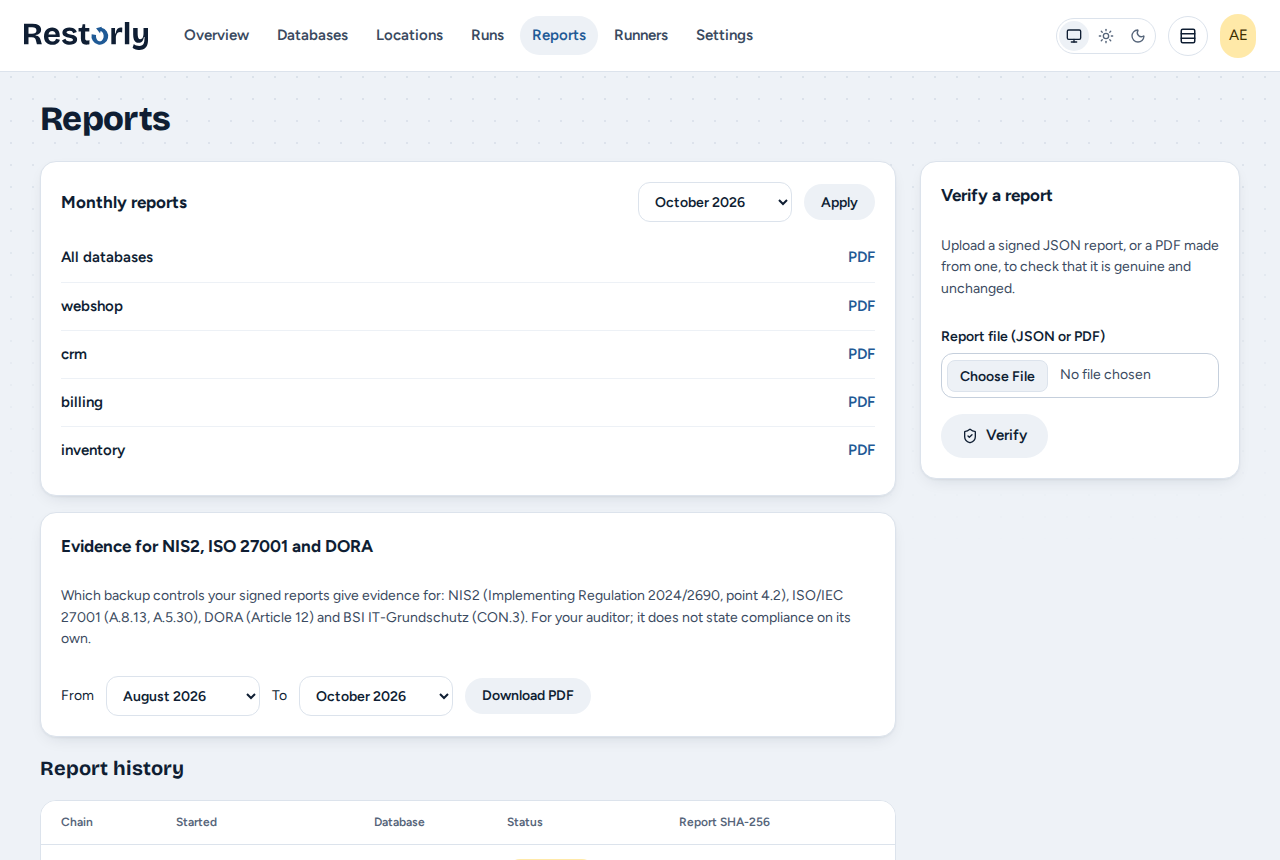
  • An evidence report mapped to NIS2 (Implementing Regulation 2024/2690, point 4.2), ISO/IEC 27001 (A.8.13, A.5.30), DORA (Article 12) and BSI IT-Grundschutz (CON.3): covered controls, gaps, and what is left for your own assessment.
  • Your own SQL checks stored in each report exactly as they ran, so a reviewer sees what was tested.
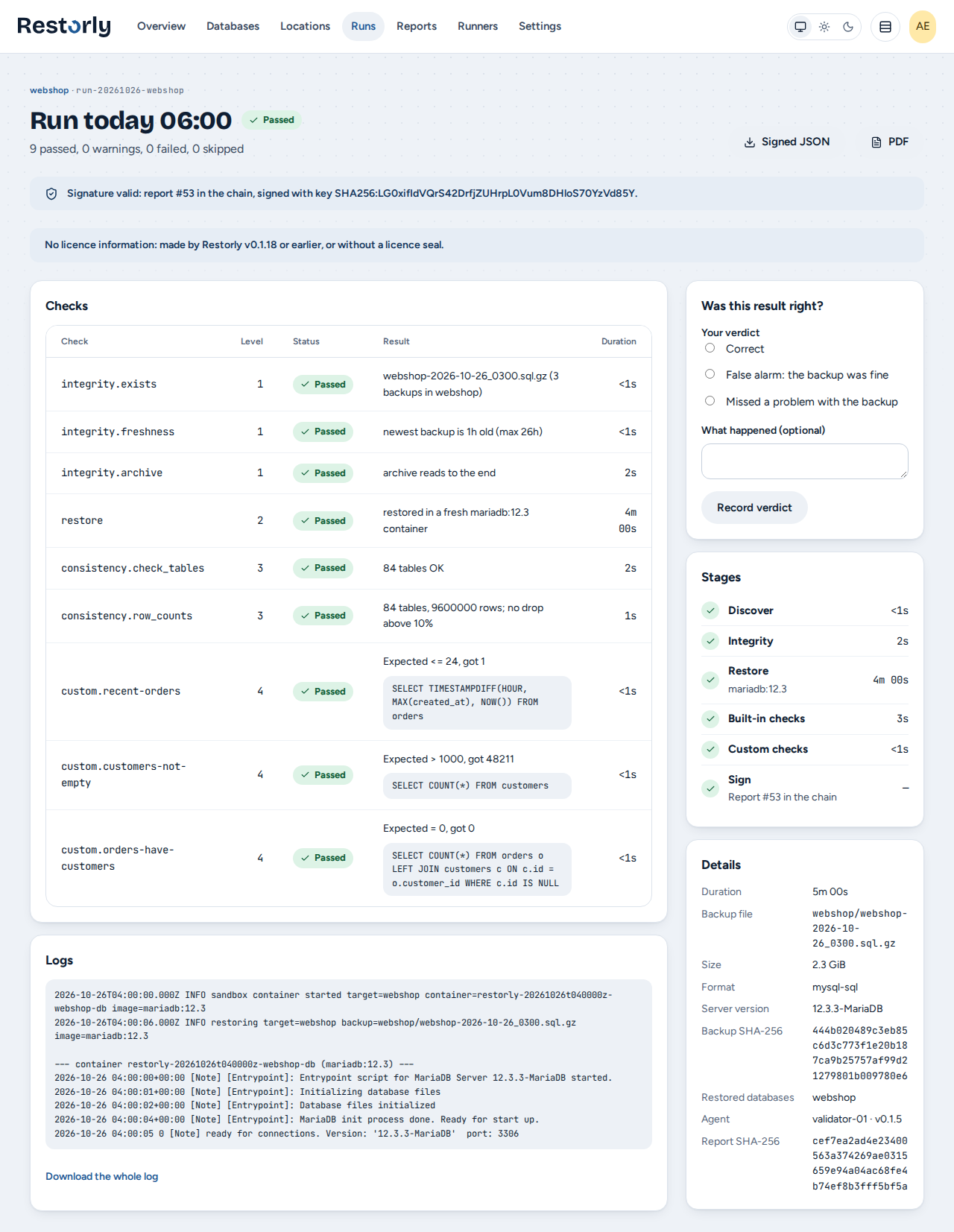
A restore test in the Restorly panel: the signature is valid, every check passed, and each custom SQL check shows what was expected and what was found.
The Reports page: monthly PDFs per database, the NIS2 and ISO 27001 evidence report for a chosen period, and a tool to verify any report file.
Many sites

Many sites, one view

  • Runners at other sites or network segments dial out to your Restorly; no inbound ports at the site.
  • Backups stay where they are and are restored next to them; data never passes through a central server.
  • Separate installs report to one dashboard: each site's last results, backup age and licence state.
Runners at several sites Restorly at the head office schedules restore tests. Runners at a branch office, a data centre and a cloud network each restore the backups stored next to them and send back only signed results, over connections they open themselves. Head office Restorly Panel, schedules, report history Countersigns every result Opens no connection to the sites Runners open the connections: results only, over mutual TLS; backup data stays at each site Branch office Runner Restores the NAS backups here Signs its own results Data centre Runner Restores the SFTP backups here Can also take backups Cloud network Runner Restores the S3 backups here No inbound port Runners at several sites Restorly at the head office schedules restore tests. Runners at a branch office, a data centre and a cloud network each restore the backups stored next to them and send back only signed results, over connections they open themselves. Head office Restorly Panel, schedules, report history Countersigns every result Opens no connection to the sites Runners open the connections: results only, over mutual TLS; backup data stays at each site Branch office Runner Restores the NAS backups here Signs its own results Data centre Runner Restores the SFTP backups here Can also take backups Cloud network Runner Restores the S3 backups here No inbound port
Each runner restores the backups next to it and sends back only its signed result. Backup data never crosses sites, and no site needs an open inbound port.
Teams

Access for each team

  • Teams and per-person access: each team sees only its databases and reports.
  • Extra rights for operators: manage databases, backup locations or runners without being an admin.
  • Single sign-on with your identity provider (Entra ID, Keycloak, Google), two-factor sign-in, and an audit log of every change.
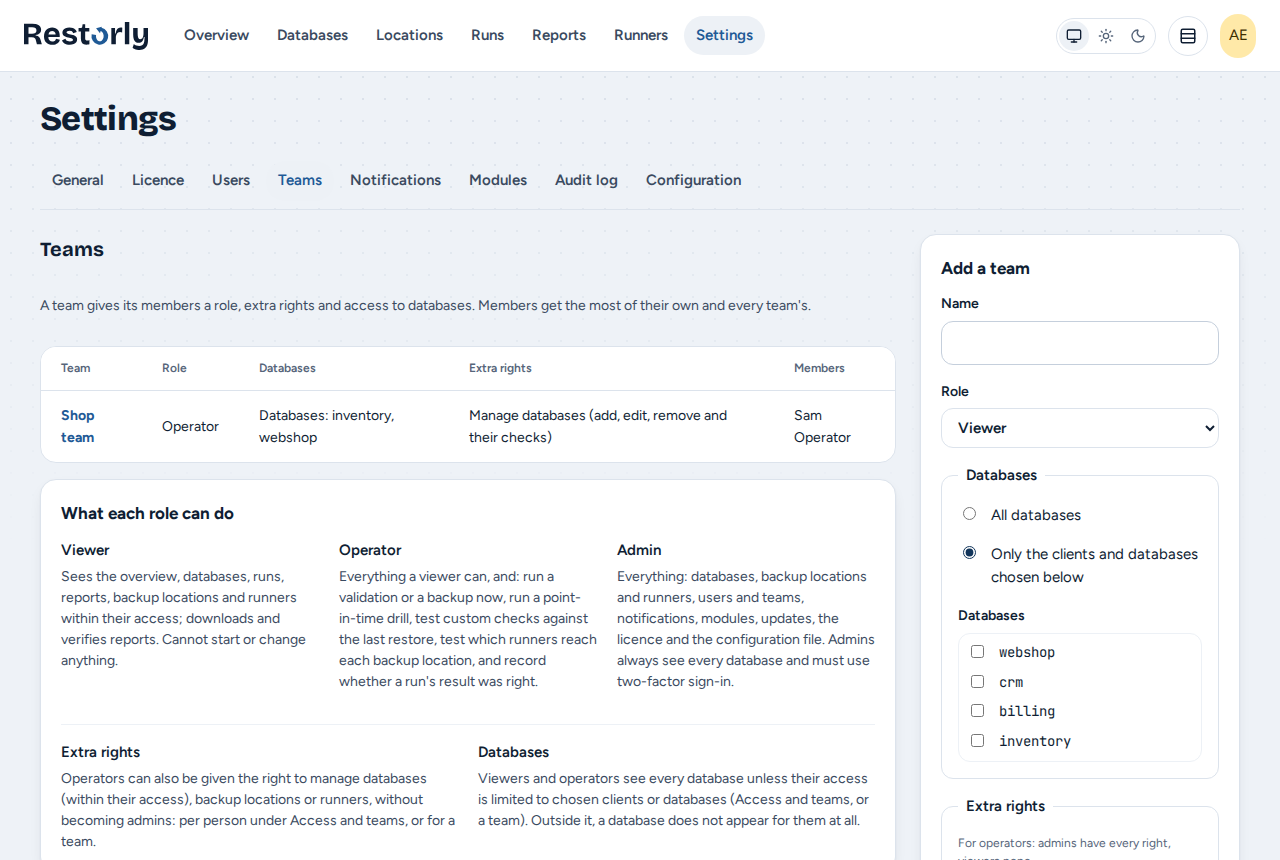
Settings, Teams: a team with the operator role, access to two databases and the extra right to manage them, and what each role can do.
IT providers

For IT providers

  • Group databases by client; every screen and report can be filtered per client.
  • A monthly PDF per client with your name and logo, ready to forward, and NIS2 evidence for the clients that need it.
  • One licence for all your clients' sites.

Clients and reports with your name and logo from the Business plan; one licence for several sites with Enterprise.

A monthly report per client with your brand An example monthly PDF for one client: your logo and name at the top, the client's databases with their restore tests passed, and a signature anyone can verify. Next to it, a client filter that narrows every screen and report to one client. Your logo Monthly backup report Client: Example Clinic · September patients-db30 restore tests✓ all passed billing30 restore tests✓ all passed appointments30 restore tests✓ 29 passed Longest restore: 6 min · newest backup at most 2 h old Signed report · verify at any time Client Example Clinic Example Law Firm Example Retail All clients Every screen and report follows the client you choose. A monthly report per client with your brand An example monthly PDF for one client: your logo and name at the top, the client's databases with their restore tests passed, and a signature anyone can verify. Below it, a client filter that narrows every screen and report to one client. Your logo Monthly backup report Client: Example Clinic · September patients-db30 tests✓ all passed billing30 tests✓ all passed appointments30 tests✓ 29 passed Longest restore: 6 min Newest backup at most 2 h old Signed report · verify at any time Client Example Clinic Example Law Firm Example Retail All clients Every screen and report follows the client you choose.

Pricing

Enterprise has a fixed monthly or yearly price, shown with the other plans: every feature, and no limit on databases, runners, users or sites. On the other plans a larger estate adds databases five at a time, 5% cheaper for every 20 added, up to 20% off. Every plan starts with a free 14-day trial, everything included. For a contract or invoice terms of your own, write to sales@restorly.eu.

How buying Enterprise works Try it for 14 days; choose Enterprise, with every feature and no limit on databases or sites; pay online and your licence is in your account at once. 1Try it for 14 days Every feature, on your own servers 2Choose Enterprise Every feature, no limit on databases or sites 3Pay online Your licence is in your account at once How buying Enterprise works Try it for 14 days; choose Enterprise, with every feature and no limit on databases or sites; pay online and your licence is in your account at once. 1Try it for 14 days Every feature, on your own servers 2Choose Enterprise Every feature, no limit on databases or sites 3Pay online Your licence is in your account at once